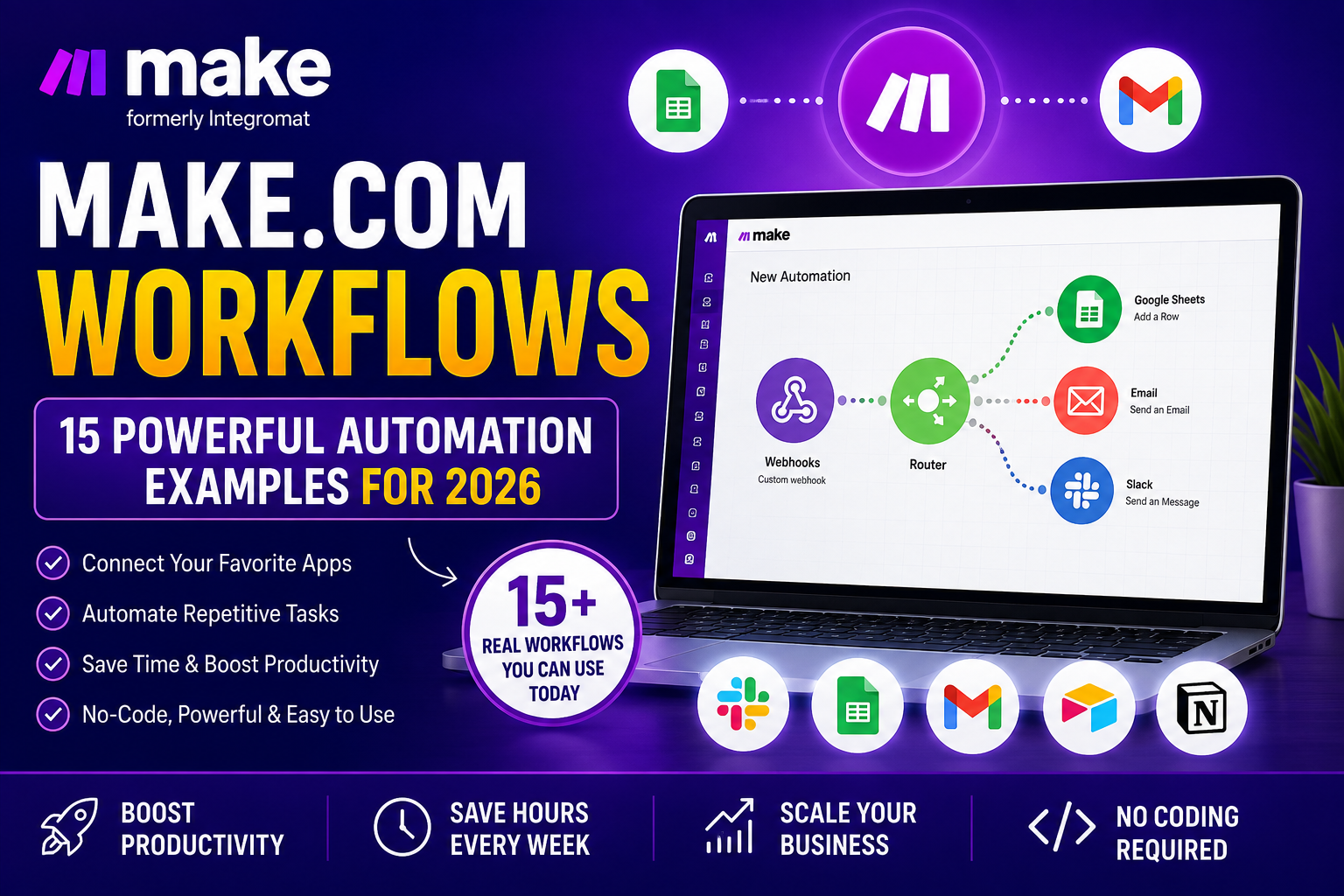
Make.com workflows help businesses automate repetitive tasks, connect apps, move data between systems, and create smarter processes without traditional coding.
Instead of manually copying information from forms to spreadsheets, sending repetitive emails, updating CRM records, or preparing the same reports every day, a Make.com workflow can handle those steps automatically.
In this guide, you’ll learn how Make.com workflows work, how to build them, and 15 practical automation examples you can use for AI, marketing, Google Sheets, CRM, email, productivity, customer support, and everyday business operations in 2026.
What Are Make.com Workflows?
Make.com workflows are automated scenarios made from connected modules. Each module performs a specific task, such as receiving new data, searching records, filtering information, sending an email, updating Google Sheets, calling an API, or posting a Slack message.
A simple workflow might look like this:
New Form Submission → Make.com → Google Sheets → Email Notification
A more advanced workflow might use filters, routers, APIs, AI modules, Iterators, and Aggregators to process data in different ways before sending it to one or more destinations.
If you are completely new to Make, start with our Make.com Tutorial for Beginners before building complex scenarios.
How Make.com Workflows Work
Most Make.com workflows contain four basic parts:
- Trigger: something starts the workflow.
- Processing: Make reads, filters, transforms, or organizes data.
- Routing: the workflow decides where data should go.
- Action: the destination module completes the task.
Webhook → Router → Google Sheets / Gmail / Slack
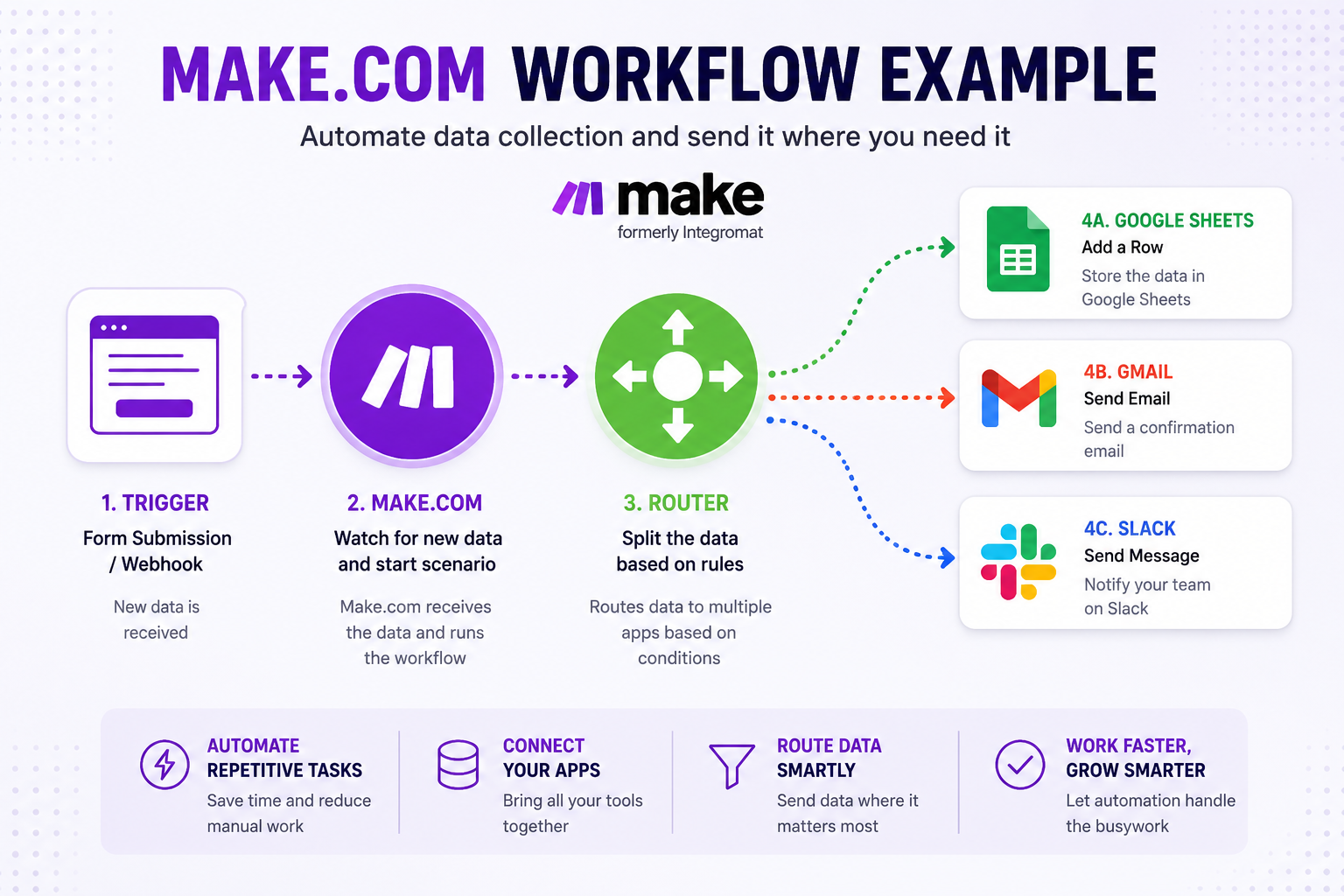
In this workflow, new data enters through a webhook or form. Make receives the information, a Router checks the conditions, and the data is sent to the correct destination.
For a deeper explanation of branching logic, see our Make.com Router Tutorial.
How to Create Make.com Workflows Step by Step
Step 1: Define the Repetitive Task
Start with a task that has clear rules. Good automation candidates are repetitive, predictable, and based on structured information.
Step 2: Choose the Trigger
The trigger is the first module in the scenario. It may be a webhook, scheduled search, new spreadsheet row, new email, form submission, ecommerce order, or another event.
For real-time scenarios, see our Make.com Webhook Tutorial.
Step 3: Add Processing Modules
After receiving data, you may need to filter it, transform it, parse JSON, split an array, aggregate bundles, or send it to an AI module.
Our existing tutorials cover Filters, Iterators, Array Aggregators, and Text Aggregators.
Step 4: Map Your Data
Mapping tells Make which value from one module should be used in another module. Run the source module once so Make can expose the sample fields you need.
Step 5: Add Filters or Routers
Filters determine whether a bundle should continue. Routers create multiple paths. Together, they allow one workflow to handle different business conditions.
Step 6: Test With Realistic Data
Use Run once and inspect every module. Check whether the trigger, mappings, conditions, and destination output match your expectations.
Step 7: Turn On Scheduling
Once the scenario works correctly, activate it and choose the appropriate schedule or instant trigger behavior.
15 Powerful Make.com Workflows for 2026
1. Website Lead to Google Sheets and Email
Workflow: Form/Webhook → Google Sheets → Gmail
This workflow captures new website leads, stores them in a spreadsheet, and sends a confirmation or internal notification.
2. Qualified Lead to CRM and Slack
Workflow: Form → Filter → CRM → Slack
A filter checks whether the lead meets your requirements. Qualified leads are added to the CRM and the sales team receives an immediate Slack alert.
3. Google Sheets to Automated Email
Workflow: Google Sheets → Gmail
When a new row appears, Make can use the row data to send a personalized email. See our Make.com Google Sheets Automation Tutorial.
4. Gmail Attachments to Google Drive
Workflow: Gmail → Filter → Google Drive
Instead of downloading attachments manually, Make can identify relevant emails and save the files to a specific cloud folder.
5. AI Email Summary to Slack
Workflow: Gmail → ChatGPT/AI → Slack
Important emails can be summarized automatically and sent to Slack.
6. Customer Feedback Analysis With AI
Workflow: Forms/Sheets → Text Aggregator → AI → Report
Collect multiple customer comments, combine them into one readable input, and ask AI to summarize common themes.
7. API Data to Google Sheets
Workflow: HTTP → JSON → Iterator → Google Sheets
This workflow retrieves data from an external API, parses the response, processes individual items, and stores selected values in Google Sheets. See our HTTP Module Tutorial and JSON Tutorial.
8. Ecommerce Order Notification
Workflow: Shopify/WooCommerce → Filter → Slack or Email
Alert your team when a new order meets specific conditions such as high value, special products, or manual review.
9. Low Stock Alert
Workflow: Inventory Source → Filter → Text Aggregator → Email
Identify products below a minimum stock level, combine them into one list, and send one alert.
10. Social Media Content Workflow
Workflow: New Blog Post → AI → Content Draft → Approval Destination
A new article can trigger an AI module that generates draft social captions for review.
11. New Calendar Event to Slack
Workflow: Google Calendar → Slack
When a new calendar event is created, Make can notify the appropriate Slack channel automatically.
12. Daily Business Report
Workflow: Data Sources → Aggregator → Email or Slack
Combine sales, leads, tasks, support tickets, or operational metrics into one daily summary.
13. AI Content Generation Workflow
Workflow: New Data → Make.com → ChatGPT/AI → Formatter → Google Sheets / Email / Slack
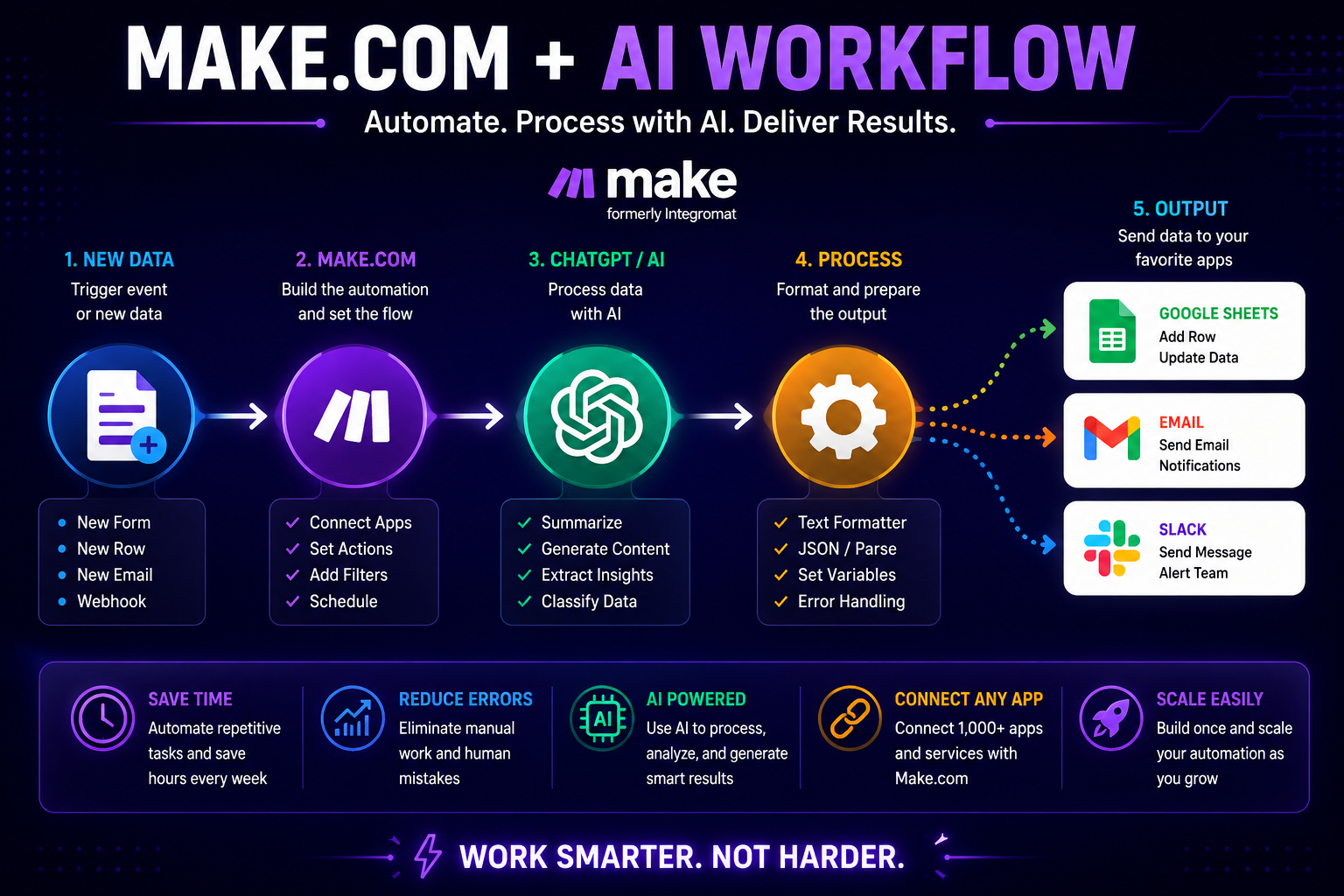
This is one of the most flexible Make.com workflows. Incoming data can be summarized, classified, rewritten, analyzed, or converted into structured output.
14. Multi-Route Customer Request Workflow
Workflow: Form → Router → Sales / Support / Billing
A Router can inspect a customer’s request type and send each submission to a different path.
15. Error Monitoring and Alert Workflow
Workflow: Main Scenario → Error Handling → Slack/Email
Production automations should be designed for failures as well as successful runs. See our Make.com Error Handling Tutorial.
Make.com Workflows With ChatGPT and AI
AI can add a processing layer between your source data and destination apps. Typical tasks include summarizing emails, generating drafts, classifying leads, extracting information, analyzing feedback, and reformatting text.
Make.com Workflows With Google Sheets
Google Sheets can act as a simple database, reporting tool, queue, or review system for Make.com workflows.
- Form submissions → Sheets
- API data → Sheets
- AI output → Sheets
- CRM records → Sheets
- New sheet row → Email
- Daily report → Sheets
Make.com Workflows: Iterator vs Aggregator
An Iterator takes items from an array and creates separate bundles. An Aggregator combines multiple bundles into one output.
API → Iterator → Process Each Record → Filter → Aggregator → Destination
See our Make.com Iterator vs Array Aggregator comparison.
Make.com Workflows: Filters vs Routers
Filters decide whether a bundle should continue through a route. Routers create multiple possible paths.
Best Practices for Reliable Make.com Workflows
- Automate clear processes.
- Use filters early.
- Map only required data.
- Name modules clearly.
- Test multiple data cases.
- Plan for missing values.
- Use error handling.
- Monitor operation or credit usage.
- Document important business logic.
Common Make.com Workflow Mistakes
Building Too Much at Once
Start with the minimum working automation and expand after testing it.
Using an Iterator When Bundles Already Exist
Some modules already produce multiple bundles, so an extra Iterator may be unnecessary.
Ignoring Data Types
Text, numbers, dates, arrays, and collections may require different handling.
Sending Every Record to Expensive Modules
Use filters before AI or other costly actions when possible.
No Error Handling
Important production workflows should have a clear plan for failed requests and unexpected input.
Frequently Asked Questions About Make.com Workflows
What are Make.com workflows?
Make.com workflows are automated scenarios made from connected modules that move, process, filter, transform, or send data between applications and services.
Do I need coding to build Make.com workflows?
Many workflows can be built without traditional coding, although advanced API or JSON scenarios may require more technical understanding.
Can Make.com workflows use AI?
Yes. AI modules can be used for summarization, classification, content generation, extraction, analysis, and other processing tasks.
Can Make.com workflows connect to Google Sheets?
Yes. Google Sheets is commonly used for storing incoming data, triggering actions, recording results, and creating reports.
What is the difference between a scenario and a workflow in Make.com?
Make officially uses the term scenario for an automation built in Make. “Workflow” is a common general term for the automated process the scenario performs.
How many modules should a Make.com workflow have?
There is no ideal number. Use only the modules required to complete the process reliably.
How do I make Make.com workflows more reliable?
Use clear business logic, filters, careful mappings, realistic testing, appropriate error handling, and regular monitoring.
Conclusion
Make.com workflows can automate many repetitive business tasks, from simple spreadsheet updates to advanced AI, API, CRM, ecommerce, and reporting processes.
The best workflow is not the one with the most modules. It is the one that solves a clear repetitive problem reliably and saves meaningful time.
Continue learning with our Make.com Beginner Tutorial, Make.com Templates Guide, Router Tutorial, Filters Tutorial, and HTTP Module Tutorial.