Building every automation from a blank canvas is not always the best use of your time. Make.com templates give you ready-made scenario structures that you can connect to your own apps, customize for your workflow, test, and schedule.
For beginners, templates make it easier to understand how triggers, actions, filters, routers, mappings, and app connections fit together. For experienced users, they can shorten setup time and provide a useful starting point for repeatable business automations.
In this guide, we’ll explain how Make.com templates work, how to use them safely, and 15 practical template ideas for AI, Google Sheets, email, lead management, CRM, social media, ecommerce, and productivity.
What Are Make.com Templates?
Make.com templates are ready-to-use scenario structures designed to help you start an automation without building every module from scratch. You can use a template as provided, edit it, expand it, and adapt it to your own business process.
Make offers public templates and team templates. Public templates are available through Make’s template library, while team templates are created and managed by members of a team.
If you are new to scenarios and modules, start with our Make.com Tutorial for Beginners.
Why Use Make.com Templates Instead of Starting From Scratch?
- Faster setup: begin with an existing scenario structure.
- Easier learning: inspect real module connections.
- Less guesswork: start from an existing sequence of actions.
- Flexible customization: add, remove, or reconfigure modules.
- Useful for teams: standardize repeatable workflows.
A template is still a starting point. Connect your own accounts, review mappings and filters, test with sample data, and confirm the scenario before scheduling it.
How to Use Make.com Templates Step by Step
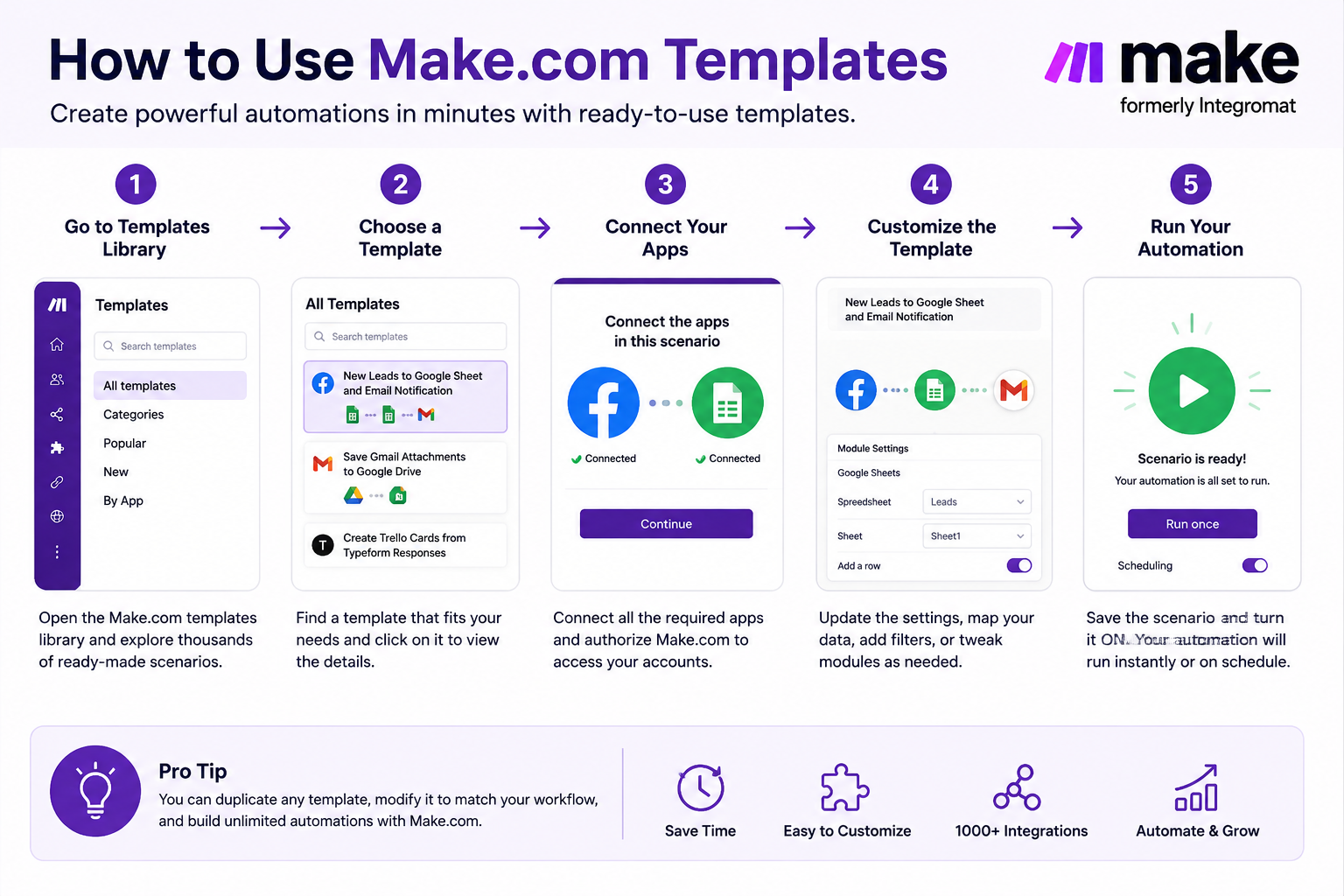
Step 1: Open the Template Library
Inside Make, open Templates. You can also explore the official Make automation templates library.
Step 2: Choose a Template
Search by the apps you use or the outcome you want, such as sending Gmail from a spreadsheet row, capturing leads, or summarizing emails with AI.
Step 3: Start Guided Setup or Create the Scenario
Public templates can offer guided setup, or you can create the scenario and configure modules manually.
Step 4: Connect Your Apps
Create or select your own authorized connections for Google Sheets, Gmail, Slack, OpenAI, Notion, Shopify, your CRM, or other services.
Step 5: Review Mappings and Filters
Confirm that fields match your data. See our Make.com Filters Tutorial.
Step 6: Run a Test
Use Run once with realistic data and inspect each module’s input and output.
Step 7: Schedule and Monitor
Choose the appropriate schedule or trigger and check execution history after launch.
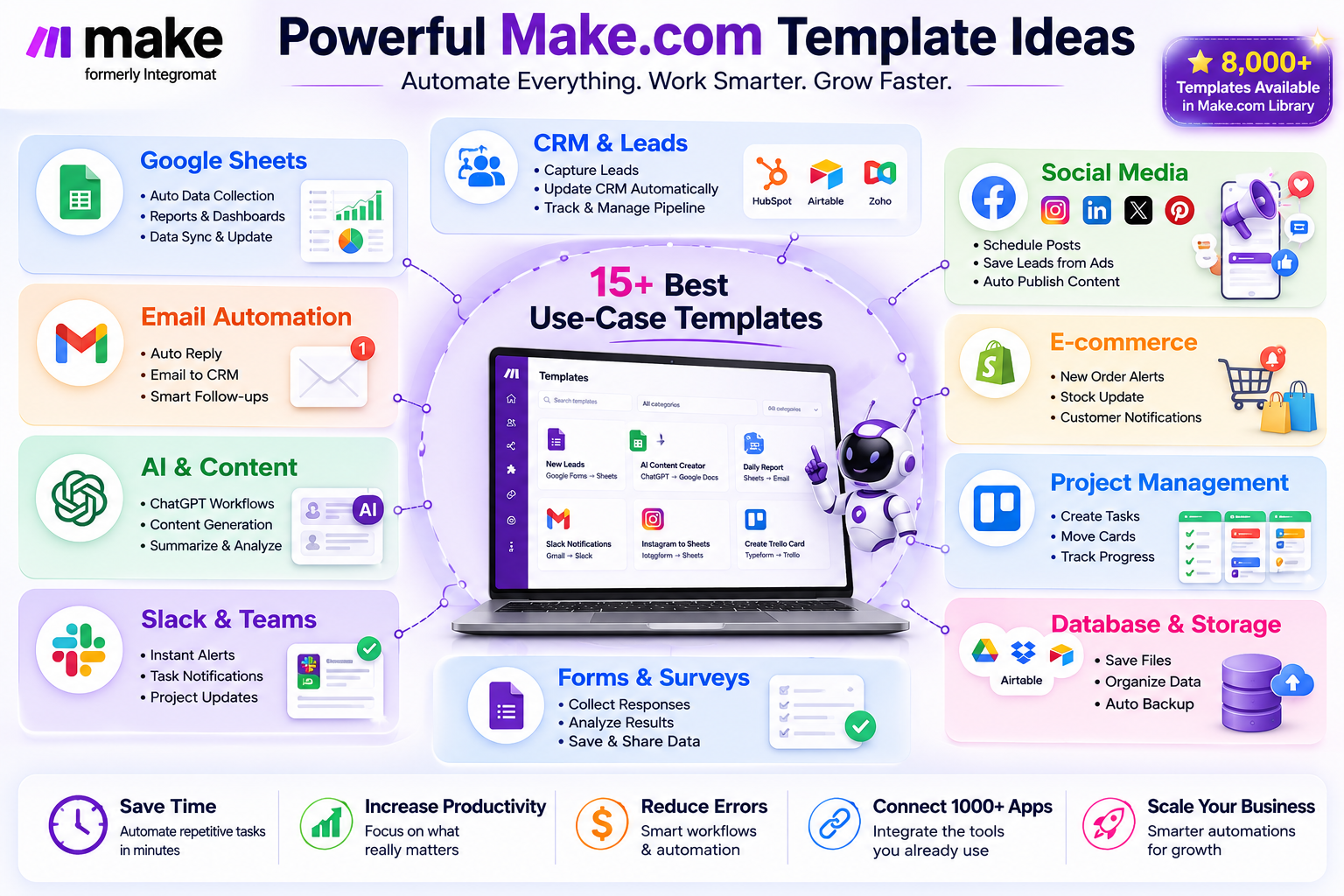
15 Best Make.com Templates and Automation Ideas for 2026
The best Make.com templates solve repetitive tasks with a clear trigger, predictable data, and useful destination.
1. Google Sheets to ChatGPT Content Generator
Workflow: Google Sheets → AI/OpenAI → Google Sheets. Generate descriptions, outlines, summaries, classifications, or other repeatable text from spreadsheet rows.
2. Gmail From a New Google Sheets Row
Workflow: Google Sheets → Gmail. Send controlled notifications or messages from spreadsheet data. See our Google Sheets Automation Tutorial.
3. Facebook Lead Ads to Google Sheets
Workflow: Facebook Lead Ads → Google Sheets. Capture new leads automatically and extend the workflow with CRM or notification actions.
4. Gmail Attachment to Google Drive
Workflow: Gmail → Google Drive. Save invoices, applications, reports, or other recurring attachments automatically.
5. Gmail Summary to Slack Using AI
Workflow: Gmail → AI/OpenAI → Slack. Summarize important messages for a team. For combined bundle output, see our Make.com Text Aggregator Tutorial.
6. Website or Form Leads to a CRM
Workflow: Webhook/Form → Filter → CRM. Capture and qualify leads before creating contacts or deals. See our Make.com Webhook Tutorial.
7. New Lead Notification to Slack or Email
Workflow: Lead Source → Filter → Slack/Gmail. Alert sales only when leads meet your criteria.
8. Notion Database to Google Calendar
Workflow: Notion → Google Calendar. Synchronize meeting or task information and test updates carefully to prevent duplicates.
9. Social Media Content From Website Updates
Workflow: Website/Feed → AI → Social Content. Turn new content into draft social posts, preferably with review for brand-sensitive accounts.
10. Instagram Comment Auto-Reply
Workflow: Instagram → Reply Action. Automate suitable repetitive responses while avoiding spammy engagement.
11. Shopify Order to Internal Notification
Workflow: Shopify → Filter → Slack/Email. Alert teams about high-value, special, or manual-review orders.
12. Low-Stock Product Alert
Workflow: Inventory Source → Filter → Notification. Identify items below a threshold and send a consolidated alert.
13. Customer Feedback Summary With AI
Workflow: Reviews/Forms/Sheets → Text Aggregator → AI → Report. Combine feedback and summarize recurring themes.
14. API Data to Google Sheets
Workflow: HTTP/API → JSON → Iterator → Google Sheets. See our HTTP Module Tutorial, JSON Tutorial, and Iterator Tutorial.
15. Daily Business Activity Digest
Workflow: Multiple Records → Filter → Aggregator → Email/Slack. Combine sales, leads, support, or tasks into one summary. Use our Array Aggregator Tutorial when structured output is required.
Make.com Templates vs Building From Scratch
| Factor | Make.com Templates | Build From Scratch |
|---|---|---|
| Setup speed | Usually faster | Usually slower |
| Beginner friendliness | High | Requires more platform knowledge |
| Customization | High after setup | Maximum control from the beginning |
| Best use | Common workflows | Unique business logic |
| Testing required | Yes | Yes |
Free Make.com Templates: Are They Really Free?
Make’s public scenario templates are available to Make users, but a template can include third-party services with their own subscriptions, API charges, usage limits, or premium features. Your Make usage can also affect the cost of running the finished scenario.
Public Make.com Templates vs Team Templates
Public Templates
Public templates are available through Make’s public library and are useful for discovering ready-made workflows and common app combinations.
Team Templates
Team templates are created by you or your team. They can support standardized internal workflows and can be published and shared. See Make’s scenario templates documentation and template management guide.
How to Customize Make.com Scenario Templates
Replace Connections
Connect your own accounts and verify permissions.
Review Mapped Fields
Confirm source fields map to the correct destination fields.
Add Filters
Prevent unwanted records from continuing.
Add Routers
Create different paths for different conditions. See our Make.com Router Tutorial.
Handle Multiple Bundles Correctly
Use Iterators to split arrays and Aggregators to combine bundles.
Review Error Handling
Plan for failed calls, missing values, rate limits, and temporary errors. See our Make.com Error Handling Tutorial.
How to Choose the Best Make.com Templates
- Start with the outcome: define what should happen.
- Check the apps: use services you actually need.
- Inspect complexity: beginners should start smaller.
- Check data requirements: understand fields, arrays, files, and API responses.
- Estimate execution frequency: frequent workflows need efficiency.
- Test edge cases: missing or unexpected values should not create bad data.
Best Make.com Templates for Beginners
Good starting workflows include Google Sheets → Gmail, Form/Webhook → Google Sheets, Gmail → Google Drive, Lead Source → Slack, and Google Sheets → AI → Google Sheets. After learning mapping and bundles, move into filters, routers, Iterators, HTTP, JSON, and aggregation.
Best Make.com Templates for Small Businesses
Small businesses often gain the most from lead capture, follow-up, document routing, reporting, appointment notifications, support summaries, inventory alerts, and content operations. Start with one frequent process with clear rules, then expand after measuring the result.
Can You Create and Share Your Own Make.com Templates?
Yes. Make supports creating team templates, publishing and sharing them, and submitting published templates for review for the public library. Make also supports scenario sharing and blueprints as related ways to reuse or share automations.
Common Mistakes When Using Make.com Templates
Activating Without Testing
Always test with realistic data first.
Ignoring Filters
Review conditions so the workflow processes only intended records.
Assuming Connections Transfer
Connect and authorize your own accounts.
Using Too Many Modules
Remove unnecessary steps; a template is a starting point.
Forgetting Error Handling
Plan for failures and missing data.
Not Checking Usage
Understand how frequently the scenario runs and what it may consume.
Frequently Asked Questions About Make.com Templates
What are Make.com templates?
They are pre-built scenario structures that help users create automations faster and can be customized for a specific workflow.
Are Make.com templates free?
Public templates are available to users, but connected apps, APIs, and scenario execution may have separate costs or limits.
Where can I find Make.com templates?
Browse Templates inside Make or use the official Make template library.
Can I edit a Make.com template?
Yes. You can change module settings, mappings, connections, and add or remove modules.
What are Make.com scenario templates?
They are reusable workflow structures that provide a starting configuration for scenarios.
Can I create my own Make.com template?
Yes. Make supports creating and sharing team templates and submitting eligible published templates for public-library review.
Are templates better than building from scratch?
Templates are faster for common workflows; building from scratch can be better for unique or highly customized logic.
Do templates include account connections?
No. You need to connect and authorize your own accounts.
Conclusion: Start With a Template, Then Make It Your Own
Make.com templates can shorten the distance between an automation idea and a working scenario. Choose a workflow that solves a real repetitive task, connect your own apps, inspect mappings, customize the business logic, test with realistic data, and monitor the first executions.
Continue with our Make.com Beginner Tutorial, Iterator Tutorial, Array Aggregator Tutorial, Filters Tutorial, and HTTP Module Tutorial.