
Make.com Text Aggregator Tutorial: Combine Multiple Bundles in 2026
If your Make.com scenario produces several bundles but you need to send them as one organized piece of text, the Make.com Text Aggregator is one of the easiest modules to use.
Instead of sending five separate emails, notifications, AI prompts, or messages, the Text Aggregator can collect values from those bundles and combine them into one text output.
Basic workflow: Multiple Bundles → Make.com Text Aggregator → One Text Output
In this tutorial, you’ll learn how the Make.com Text Aggregator works, how to configure the Source Module and row separator, how to use it with Google Sheets and Iterator, and when to choose Text Aggregator instead of Array Aggregator.
What Is the Make.com Text Aggregator?
The Make.com Text Aggregator is a Tools module that combines text values from multiple incoming bundles into a single output bundle. Make’s documentation explains that aggregators collect values from several bundles and produce one resulting bundle, while Text Aggregator is designed specifically for readable text output.
Imagine your scenario produces five customer records:
- John Smith
- Sarah Jones
- David Miller
- Emma Wilson
- Michael Brown
With a Text Aggregator, you can turn those separate bundles into one result:
John Smith
Sarah Jones
David Miller
Emma Wilson
Michael Brown
You can then map that single text result into an email, Slack message, notification, AI prompt, CRM note, or another destination.
For broader scenario basics, see our Make.com Tutorial for Beginners.
How the Make.com Text Aggregator Works
The easiest way to understand the module is to think about bundles.
A Make.com module may output multiple bundles:
Bundle 1 → John Smith
Bundle 2 → Sarah Jones
Bundle 3 → David Miller
The Text Aggregator collects those bundles and converts their selected values into one text result:
John Smith
Sarah Jones
David Miller
The important transformation is:
Many bundles → one bundle containing aggregated text
This is different from an Iterator, which commonly takes items from an array and produces individual bundles. If you’re still learning that concept, read our Make.com Iterator Tutorial.
When Should You Use the Make.com Text Aggregator?
Use the Make.com Text Aggregator when several bundles need to become one readable text value.
- Combining Google Sheets rows into one message
- Creating a list of customer names
- Combining multiple AI-generated responses
- Building one email from several records
- Creating a daily notification summary
- Combining product names into one text field
- Preparing several records for an AI prompt
- Creating a readable list from Iterator output
- Combining CRM notes
- Sending multiple search results in one Slack message
The key question is simple: does the next module need readable text or structured data?
If it needs readable text, Text Aggregator is usually the right choice. If it needs an array or structured collections, use an Array Aggregator instead. See our Make.com Array Aggregator Tutorial for that workflow.
Make.com Text Aggregator Tutorial: Step-by-Step Setup
Let’s build a simple scenario. Assume Google Sheets returns several customer records and you want to send all customer names in one message.
Workflow: Google Sheets → Filter → Text Aggregator → Slack / Email / Notification

Step 1: Add Your Source Module
Start with a module that can produce multiple bundles. A common example is Google Sheets → Search Rows, but the same principle applies to search, list, repeater, iterator, database, CRM, and API modules that output more than one bundle.
Run the source module once so Make can identify its output fields. This makes mapping easier because Make can display fields such as:
- First Name
- Last Name
- Company
- Status
If you are building spreadsheet workflows, our Make.com Google Sheets Automation Tutorial covers the wider setup.
Step 2: Add the Text Aggregator
Click the + icon after your source or processing module, search for Text Aggregator, and select Tools → Text Aggregator.
The configuration window will open and you will see settings for the Source Module, Text, and row separator.
Step 3: Select the Source Module
The Source Module is one of the most important Text Aggregator settings because it tells Make where bundle aggregation begins.
If Google Sheets is generating the records you want to combine, select that Google Sheets module as the Source Module. For example:
Source Module: Google Sheets – Search Rows
Make will aggregate the bundles that travel from that source through the route and eventually reach the Text Aggregator.
Make’s official aggregator tutorial demonstrates this exact concept: the aggregator is configured with the module that starts producing the bundles being combined. You can review the official guide at Make Help Center: Add an Aggregator.
Understanding the Make.com Text Aggregator Source Module
The Source Module defines the beginning of the aggregation route.
Suppose your workflow is:
Google Sheets → Filter → Text Aggregator
If Google Sheets is selected as the Source Module, the Text Aggregator collects the bundles that successfully travel through the route and reach the aggregator.
For example, Google Sheets returns:
John – Active
Sarah – Inactive
David – Active
A filter keeps only:
Status = ActiveThe Text Aggregator receives:
John
David
The resulting text contains only the bundles that passed the filter.
For more advanced conditions, see our Make.com Filters Tutorial.
Step 4: Configure the Text Field
The Text field determines what should be extracted from each incoming bundle.
For example, you could map:
First Name Last NameIf your incoming bundles contain:
John | Smith
Sarah | Jones
David | Miller
the aggregator can produce:
John Smith
Sarah Jones
David Miller
You can also add labels:
Customer: First Name Last Name
Email: Email Address
The output could become:
Customer: John Smith
Email: john@example.com

Customer: Sarah Jones
Email: sarah@example.com
This makes the Make.com Text Aggregator particularly useful for readable summaries and notifications.
Step 5: Choose a Row Separator
The row separator determines how each aggregated record is separated.
For readable lists, New row is usually the best choice:
John Smith
Sarah Jones
David Miller
Other workflows may use commas or custom formatting:
John Smith, Sarah Jones, David MillerChoose the separator based on what the destination expects. Emails, Slack messages, and notifications usually work well with new rows, while tags or compact text values may work better with commas.
Step 6: Map the Aggregated Text to the Destination
After configuring the Text Aggregator, add your destination module. Examples include:
- Text Aggregator → Gmail
- Text Aggregator → Slack
- Text Aggregator → AI module
- Text Aggregator → CRM
- Text Aggregator → HTTP/API request
Inside the destination’s message or text field, map the output from the Text Aggregator.
Instead of receiving several individual bundle operations, the destination can now receive one combined text value.
Practical Example: Google Sheets to One Notification
Consider a sales team that stores new leads in Google Sheets. Several new leads may appear:
Ahmed – Dubai
Sarah – London
John – New York
Maria – Madrid
Sending four separate notifications could become distracting. Instead, build:
Google Sheets → Filter → Text Aggregator → Notification
Configure the Text Aggregator with:
- Source Module: Google Sheets
- Row Separator: New row
- Text: Name: {{Name}} – Location: {{Location}}
The result becomes:
New Leads:

Name: Ahmed – Location: Dubai
Name: Sarah – Location: London
Name: John – Location: New York
Name: Maria – Location: Madrid
The sales manager receives one organized notification instead of four separate messages.
Using Make.com Text Aggregator with Iterator
The Make.com Text Aggregator works naturally with an Iterator.
A common workflow is:
Array → Iterator → Filter / Process → Text Aggregator
The Iterator separates array items into bundles. The Text Aggregator later combines selected values from those bundles into readable text.
For example, an API returns:
{
  "products": [
    {"name": "Keyboard", "price": 150},
    {"name": "Mouse", "price": 40},
    {"name": "Monitor", "price": 900}
  ]
}
An Iterator processes each product individually. After filtering products priced above 100, the remaining bundles are:
Keyboard – 150
Monitor – 900
The Text Aggregator can then create:
Products above 100:

Keyboard – 150
Monitor – 900
This is useful when the final destination needs a readable summary instead of another array.
If your data source is JSON, our Make.com JSON Tutorial explains how to parse and inspect structured data before processing it.
Make.com Text Aggregator vs Array Aggregator
One of the most important distinctions is Make.com Text Aggregator vs Array Aggregator.
Both modules combine multiple bundles, but their outputs serve different purposes.
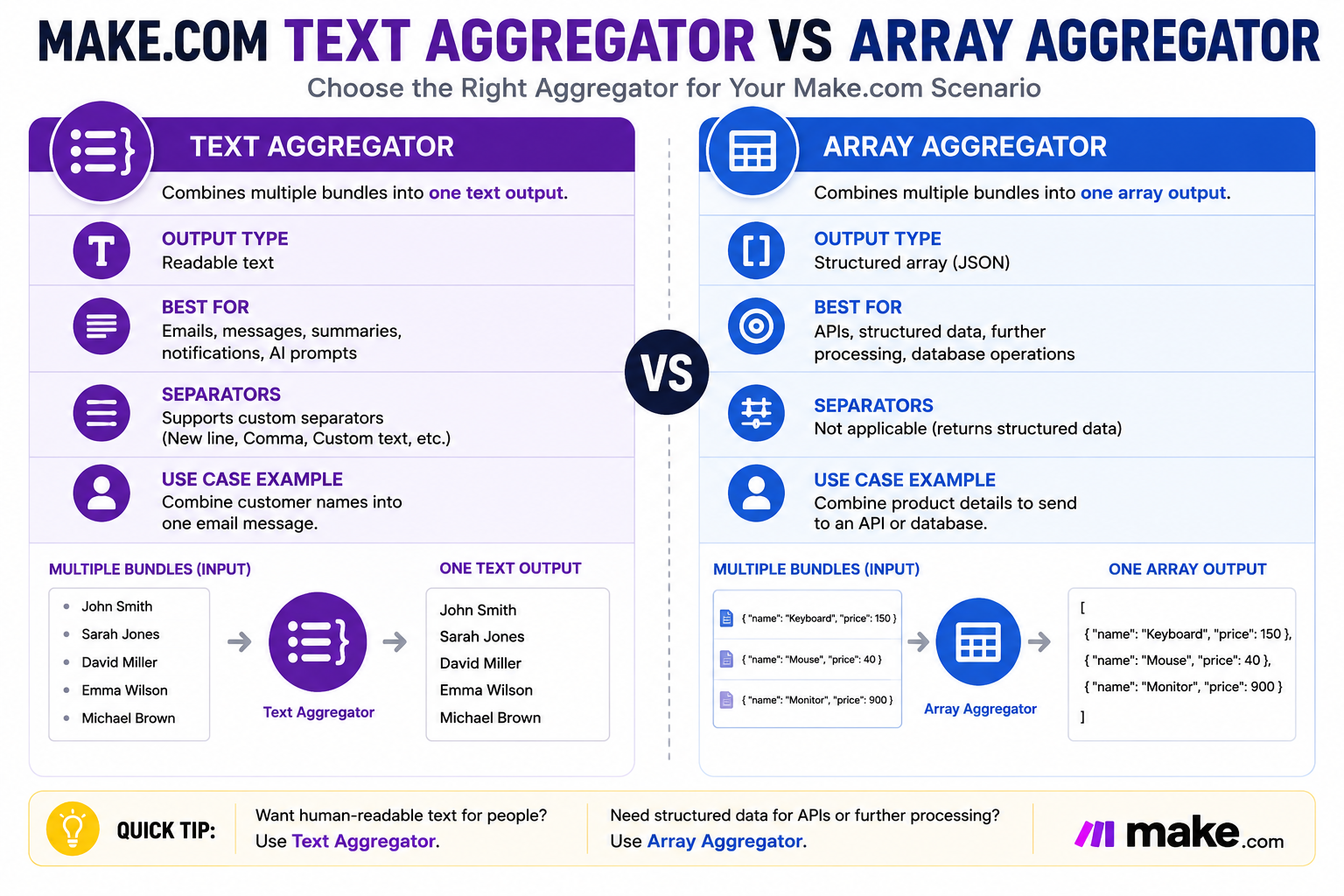
| Feature | Text Aggregator | Array Aggregator |
|---|---|---|
| Main purpose | Combine values into readable text | Combine bundles into a structured array |
| Output | Text | Array / collections |
| Best for | Emails, messages, summaries, prompts | APIs, structured payloads, further processing |
| Separators | Useful for formatting | Not the primary purpose |
| Human-readable | Excellent | Usually requires formatting |
| Structured downstream mapping | Limited | Excellent |
Use this rule:
Need readable text? → Text Aggregator
Need structured data? → Array Aggregator
For structured aggregation, read our Make.com Array Aggregator Tutorial.
Make.com Text Aggregator vs Iterator
These modules perform different jobs.
An Iterator commonly takes an array and turns its items into separate bundles. A Text Aggregator takes multiple bundles and combines selected values into text.
A common pattern is therefore:
Array → Iterator → Process → Text Aggregator
The Iterator makes individual processing possible. The Text Aggregator makes the final result readable.
For a direct comparison between the main bundle-processing tools, also read Make.com Iterator vs Array Aggregator.
Text Aggregator vs Table Aggregator
Make.com also provides a Table Aggregator. The distinction is useful.
A Text Aggregator is best when you want flexible text:
John Smith – Sales
Sarah Jones – Marketing
A Table Aggregator is more appropriate when you need rows and columns:
Name | Department
John Smith | Sales
Sarah Jones | Marketing
Choose the module based on the structure required by the destination.
Using Make.com Text Aggregator with AI Workflows
The Make.com Text Aggregator can be especially useful in AI automation.
Imagine several modules produce customer feedback, support tickets, product reviews, research findings, or search results. Instead of sending every record separately to an AI module, you may want to combine the relevant text first.
A workflow could look like:
Search Records → Filter → Text Aggregator → AI Module
The aggregated input might become:
Customer Feedback:

1. Delivery was fast.
2. Packaging was damaged.
3. Customer support was helpful.
4. Product quality was excellent.
The AI module can then receive one organized input and summarize or classify the records.
If the destination is an API endpoint, our Make.com HTTP Module Tutorial can help with the next step.
Using Filters Before the Make.com Text Aggregator
Filters are extremely useful before aggregation.
Suppose your source returns 100 orders but you only want orders marked:
Status = DelayedBuild:
Search Orders → Filter → Text Aggregator
Only bundles that pass the filter reach the aggregator.
The final text might become:
Delayed Orders:

Order #1021
Order #1044
Order #1098
This is usually cleaner than aggregating everything first and trying to remove unwanted values afterward.
Common Make.com Text Aggregator Mistakes
Selecting the Wrong Source Module
The aggregator must know where collection begins. If the wrong module is selected, the aggregation route may not behave as expected.
Expecting an Array as Output
Text Aggregator produces text. If the next API expects JSON or an array, use an Array Aggregator instead.
Forgetting the Row Separator
Without separators, the result may become difficult to read. Use a new row, comma, or another custom separator depending on the destination.
Aggregating Before Filtering
If unwanted bundles are aggregated first, cleaning the final text can become unnecessarily complicated. When possible, filter before aggregation.
Expecting Original Bundle Fields After Aggregation
Aggregation changes the data flow. Values created inside the aggregation route may not remain available after aggregation in the same way they were before it. Include whatever information the next module needs in the aggregated output.
Adding an Iterator When You Already Have Bundles
You do not always need an Iterator before a Text Aggregator. If Google Sheets, a search module, or another source already outputs multiple bundles, those bundles can often be aggregated directly.
Make.com Text Aggregator Troubleshooting
Check the Source Module
Confirm that the Source Module represents the correct starting point for aggregation.
Run the Source Module Once
Make often needs sample output before fields appear reliably in the mapping panel.
Inspect Incoming Bundles
Before blaming the aggregator, check how many bundles reach it, whether they contain the expected values, whether filters removed records, and whether fields are mapped correctly.
Check Your Separator
If the content appears stuck together, change the row separator.
Check the Destination
Sometimes the aggregator output is correct but the destination module formats the text differently. Inspect the Text Aggregator output first.
Make.com Text Aggregator Business Use Cases
Daily Sales Summary
Combine daily sales records into one message for management.
Customer Support Digest
Aggregate unresolved ticket titles into one Slack or email summary.
AI Review Analysis
Combine product reviews before sending them to an AI module for summarization.
Lead Notifications
Combine new qualified leads into one organized sales notification.
Inventory Alerts
Aggregate products below minimum stock into one warning.
Project Updates
Combine completed or overdue tasks into a daily project summary.
API and Search Result Summaries
Turn multiple search-result bundles into readable text before sending them elsewhere.
Does Make.com Text Aggregator Reduce Operations?
Aggregation can reduce unnecessary downstream actions in some workflows because several bundles can be combined before reaching a module that would otherwise execute once per bundle.
For example:
10 bundles → Send Emailmay cause the email module to process each bundle separately.
Whereas:
10 bundles → Text Aggregator → Send Emailcan allow one combined output to reach the email module.
However, design scenarios around the correct data structure and business requirement first rather than adding aggregation purely to reduce operations.
Best Practices for Make.com Text Aggregator
- Choose the Source Module carefully.
- Filter unwanted bundles before aggregation.
- Use clear separators.
- Format each record consistently.
- Test with multiple bundles.
- Inspect the aggregator output before connecting the final destination.
- Use Text Aggregator for readable text.
- Use Array Aggregator for structured arrays.
- Avoid unnecessary Iterators when bundles already exist.
- Keep downstream module requirements in mind.
Frequently Asked Questions
What does the Make.com Text Aggregator do?
The Make.com Text Aggregator combines selected text values from multiple incoming bundles into a single output bundle containing aggregated text.
What should I select as the Source Module?
Select the module where the bundles you want to aggregate begin. This is often an Iterator, search module, Google Sheets module, repeater, or another source producing multiple bundles.
What is the difference between Text Aggregator and Array Aggregator?
Text Aggregator creates readable text. Array Aggregator creates a structured array. Choose based on what the next module expects.
Do I need an Iterator before Text Aggregator?
No. If your source already produces multiple bundles, you can often aggregate those bundles directly. Use an Iterator when an array must first be separated into individual bundles.
Can Text Aggregator work with Google Sheets?
Yes. Google Sheets records can be aggregated into one text output, making the combination useful for summaries, emails, alerts, and notifications.
Can I use Text Aggregator before an AI module?
Yes. Multiple pieces of text can be aggregated before being mapped into an AI prompt or input field when one combined context is appropriate.
Why is my Text Aggregator output on one line?
Check the row separator setting. Use a new-row separator when each record should appear on a separate line.
Can I filter bundles before aggregation?
Yes. A filter placed before the Text Aggregator can prevent unwanted bundles from becoming part of the final aggregated text.
Conclusion
The Make.com Text Aggregator is a simple but powerful module for converting multiple bundles into one readable text output.
Use it when several records need to become one email, notification, AI prompt, summary, or message. Select the correct Source Module, map the values you want to combine, choose an appropriate separator, and then send the aggregated result to your destination.
Remember the basic rule:
- Iterator → splits data into bundles.
- Text Aggregator → combines bundles into readable text.
- Array Aggregator → combines bundles into structured arrays.
Continue learning with our Make.com Tutorial for Beginners, Iterator Tutorial, Array Aggregator Tutorial, Filters Tutorial, and Google Sheets Automation Tutorial.