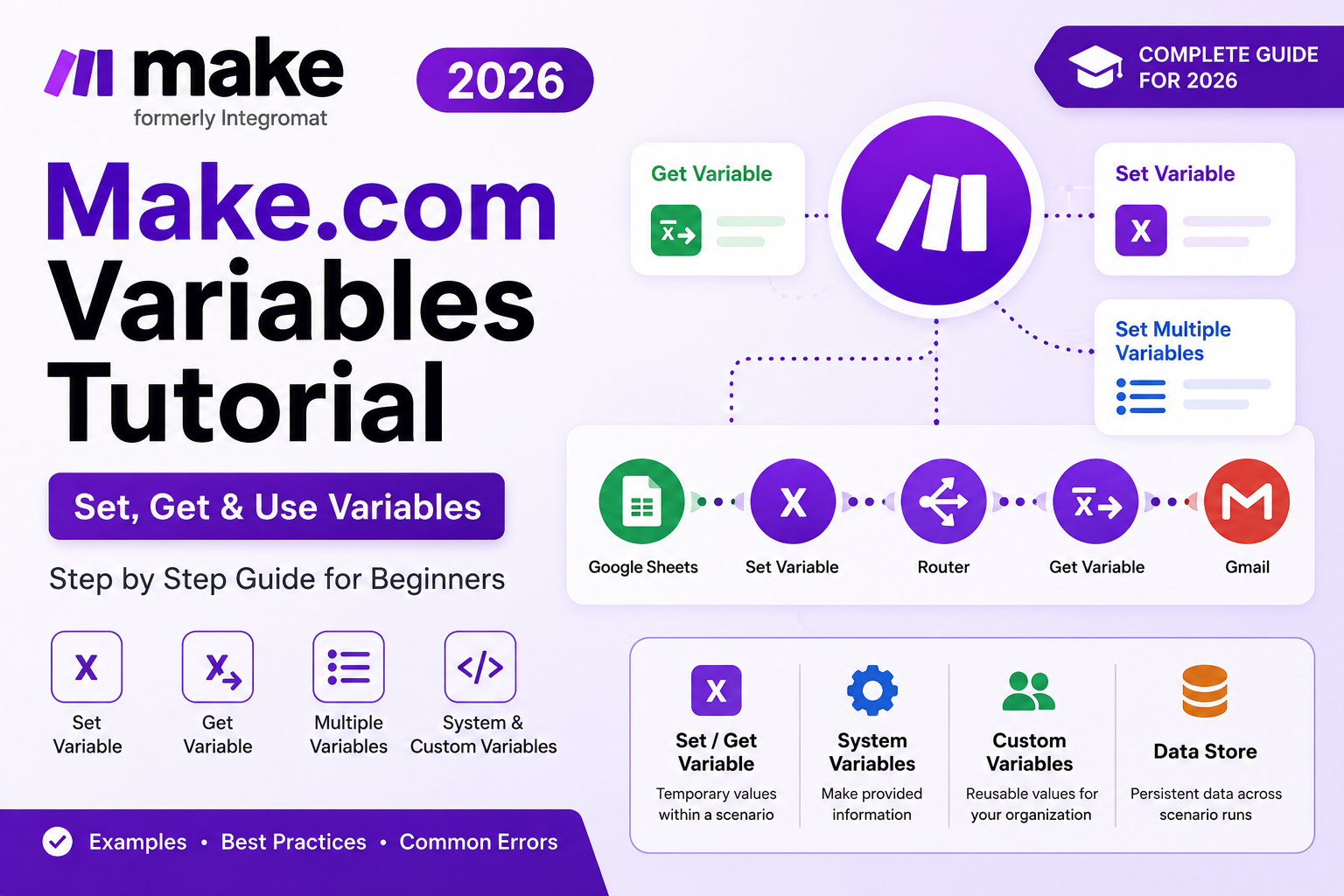
Make.com Variables Tutorial: Powerful 7-Step Guide for 2026
Variables are one of the most useful Make.com features to learn once your automations become more complex. Instead of repeatedly rebuilding the same value across modules, you can save information under a clear variable name and reuse it later in the scenario.
In this Make.com Variables Tutorial, you will learn how to use Set variable, Get variable, Set multiple variables, scenario variables, system variables, custom variables and incremental variables. We will also cover practical workflows and common problems such as Make.com variables not updating.
If you are completely new to Make.com, start with our complete Make.com Tutorial for Beginners before moving into variables.
In this guide:
- What variables are and when to use them
- Make.com Set Variable and Get Variable
- Set Multiple Variables
- Variable lifetime and scope
- System variables
- Custom variables
- Incremental variables
- Variables with Filters and Routers
- Practical examples
- Common errors and troubleshooting
Make.com Variables Tutorial: What Are Variables in Make.com?
A variable is a named container for a value. Make describes variables as containers that store data under a unique name so the value can be referenced later in a scenario.
Imagine a lead arrives with this information:
- Name: John Smith
- Country: UAE
- Lead score: 85
- Status: Qualified
You could create a variable called lead_status and give it the value Qualified. Later modules can reuse that value instead of rebuilding the same logic.
A simple workflow could look like:
Google Sheets → Set Variable → Router → Get Variable → Gmail
Make currently documents four broad variable types: system variables, scenario variables, custom variables and incremental variables. Scenario variables are created inside a scenario, while system variables are supplied by Make. Custom variables can be created at organization or team level on supported plans.
Read Make’s official variables documentation.
Why Use Variables in Make.com?
Variables are useful when the same information needs to be reused, calculated, checked or passed between different parts of a scenario. This Make.com Variables Tutorial shows how they can make larger workflows easier to read and maintain.
- Reuse calculated values in several modules.
- Keep mappings cleaner.
- Store temporary values during a scenario run.
- Pass values between routes.
- Build flags and counters.
- Create dynamic messages.
- Use values inside Filters and Routers.
- Improve debugging and error notifications.
Make.com Variables Tutorial: How Set and Get Variables Work
One of the first Tools modules to learn is Set variable. Suppose Google Sheets provides a customer’s first and last name and you want to reuse the full name later.
Step 1: Add the Tools module
Open your Make.com scenario, click the + where you want to create the variable, search for Tools, and select Set variable.
Step 2: Enter a clear variable name
Use a descriptive name such as:
customer_name
Avoid vague names such as variable1 or data2. Clear names make large scenarios much easier to troubleshoot.
Step 3: Map the variable value
Map the information that should become the value. For example, combine the First Name and Last Name fields from Google Sheets so the result becomes:
John Smith
Step 4: Choose the variable lifetime
Make’s scenario-variable settings allow a lifetime such as one cycle or one execution. Choose the lifetime that matches how long the value needs to remain available during the run.
Step 5: Test the module
Click Run once, send sample data through the scenario and inspect the Set Variable module output.

How to Get a Variable in Make.com
If the variable must be retrieved on another route, Make provides Get variable and Get multiple variables. Make’s official scenario-variable guide specifically recommends these tools when the defined variable needs to be accessed from a different route.
For example:
Google Sheets → Set Variable → Router → Get Variable → Gmail
The Get Variable module can retrieve customer_name and map it into the email subject, body or another downstream module.
See Make’s official scenario variables guide.
Make.com Set Multiple Variables
If several related values need to be defined at the same point, use Set multiple variables rather than adding several separate Set Variable modules. In this Make.com Variables Tutorial, that is the recommended approach when the values belong together.
| Variable | Example value |
|---|---|
customer_name | John Smith |
country | UAE |
lead_score | 85 |
lead_status | Qualified |
A practical flow could be:
Webhook → Set Multiple Variables → Router → CRM
Use Set Variable for one value and Set Multiple Variables when several values logically belong together.
Understanding Scenario Variable Lifetime
Scenario variables are designed for temporary information used during a scenario run. One of the most important lessons in this Make.com Variables Tutorial is that these values should not be treated as permanent storage. Make’s documentation explains that scenario variables no longer exist after the scenario stops running.
This makes them ideal for:
- Temporary calculations
- Values reused within one execution
- Flags and simple counters
- Passing information between modules and routes
They are not a replacement for persistent storage. If information must survive between scenario executions, use a tool designed for persistent data, such as a custom variable for simple shared configuration values or a Data Store for database-like records.
Make.com System Variables
System variables are supplied by Make and cannot be modified or deleted. They expose useful information about the scenario, execution, team and organization.
Examples documented by Make include:
- Scenario ID, name and URL
- Execution ID
- Execution start date and time
- Operations consumed
- Team ID and name
- Organization ID and name
- Usage information such as operations left
System variables are particularly useful for logging, error handling, usage alerts and debugging.
For example, an error notification could include the scenario name and execution ID so you can identify the failed run faster.
Read Make’s official system variables documentation.
Make.com Custom Variables
Custom variables are similar to scenario variables, but they are defined at the organization or team level. Make says they are suitable for values shared across scenarios, settings that control scenario behavior, and values that need to persist between runs.
Examples include:
company_name = "XVIFS"default_currency = "AED"testmode = truemax_retry_attempts = 3
Make currently lists custom variables as available on Pro, Teams and Enterprise plans. They support text, number, Boolean and date data types.
Read Make’s official custom variables guide.
Incremental Variables in Make.com
Make also supports incremental variables for counter-style use cases. They can be incremented during an execution and can be configured to reset for each execution or keep their counter across executions depending on the Increment function settings.
A simple counting pattern is:
1 → 2 → 3 → 4 → 5
This can be useful when processing arrays or batches. If your workflow handles multiple items, also see our Make.com Iterator Tutorial.
Scenario Variables vs System Variables vs Custom Variables vs Data Stores

| Feature | Best use |
|---|---|
| Scenario variables | Temporary values used during a scenario run |
| System variables | Make-provided execution, scenario, team and organization information |
| Custom variables | Shared organization/team settings and simple values that persist between runs |
| Incremental variables | Counter-style values |
| Data Store | Database-like records and structured data stored between runs or scenarios |
Make describes Data Stores as a built-in database-like tool that can store data during execution and transfer data between scenarios or runs.
Read Make’s official Data Stores documentation.
Using Variables With Make.com Filters
Variables become especially useful when combined with Filters. This Make.com Variables Tutorial uses lead scoring as a practical example. Suppose your scenario calculates:
lead_score = 85
You can create a filter such as:
Lead Score → Greater than → 70
The workflow becomes:
Webhook → Set Variable → Filter → Gmail
If the score meets the condition, the filtered route continues. If not, that path stops. For a complete walkthrough, read our Make.com Filters Tutorial.
Using Variables With Make.com Routers
Variables also work well with Routers. Imagine a value called:
lead_status = Hot
You could create:
Webhook → Set Variable → Router
Then create routes such as:
- Hot Lead
- Warm Lead
- Cold Lead
Each route can have a Filter that checks the relevant value. Our Make.com Router Tutorial explains how to create multiple automation paths.
Practical Example: Lead Qualification Automation
Imagine leads arrive through a website form with a name, email, country, budget and service request.
A practical scenario could be:
Webhook → Set Multiple Variables → Router → Filters → Gmail → Google Sheets
Set variables such as:
lead_namelead_emaillead_countrylead_budget
High-value lead route
If lead_budget >= 5000, send an immediate notification to the sales team.
Standard lead route
If lead_budget < 5000, save the lead in Google Sheets and send a standard follow-up.
This pattern keeps the data preparation separate from the logic that decides what happens next.
Practical Example: AI Automation
Variables can also make AI workflows easier to manage.
For example:
Google Sheets → Set Multiple Variables → ChatGPT → Gmail
You might create:
customer_namecustomer_questionresponse_tone
Then map those variables into the AI prompt and pass the generated result to Gmail.
For a complete AI workflow, see our guide to connecting ChatGPT with Make.com.
Make.com Variables Not Updating: Common Problems
1. The variable is created too late
A module cannot use a scenario variable that has not been established on the execution path yet. Put Set Variable before the module or filter that needs the value.
2. The variable is on another Router path
If a variable is set on one route and needed on another route, use Make’s Get Variable or Get Multiple Variables tools as appropriate. Check the execution history to confirm which modules actually ran.
3. You chose the wrong lifetime
Scenario variables can have a lifetime such as one cycle or one execution. Check the variable configuration if the value disappears earlier than expected.
4. You expect a scenario variable to persist forever
Scenario variables stop existing after the run ends. Use a custom variable for simple shared settings or a Data Store/database when persistent structured data is required.
5. A custom variable appears to show an older value during the current run
Make states that when a custom variable is changed during a scenario execution, the new value becomes available after that execution finishes. The current run continues using the earlier value.
6. Your variable names are unclear
Prefer customer_email, invoice_total and lead_status over vague names such as value1 or test2.
Make.com Variables Tutorial: Best Practices for Variables
- Use clear, descriptive variable names.
- Set values before the modules that need them.
- Use Set Multiple Variables for related values.
- Choose the correct variable lifetime.
- Use system variables for execution and account context.
- Use custom variables only for appropriate shared values and never for secrets.
- Use Data Stores for persistent structured records.
- Inspect execution history when results are unexpected.
- Avoid variables when direct mapping is already simple.
- Keep scenarios readable.
Frequently Asked Questions
What does this Make.com Variables Tutorial cover?
This Make.com Variables Tutorial covers scenario variables, Set Variable, Get Variable, Set Multiple Variables, system variables, custom variables, incremental variables, persistence, troubleshooting and practical workflow examples.
What is a variable in Make.com?
A variable is a named container for data that can be referenced later in a Make.com scenario or, depending on the variable type, across a broader team or organization context.
How do I set a variable in Make.com?
Add Tools → Set variable, enter the variable name, map the value, select the appropriate lifetime and save the module.
How do I get a variable in Make.com?
Use Get variable when you need to retrieve a scenario variable on another route. Make also provides Get Multiple Variables for retrieving several values.
Can I set multiple variables in Make.com?
Yes. Use Set multiple variables when several related values should be created at the same point in the scenario.
Do Make.com scenario variables persist between runs?
No. Make’s documentation states that scenario variables exist only in the current scenario run and no longer exist after the run stops.
What are Make.com system variables?
System variables are read-only values provided by Make, including information about the current scenario, execution, team and organization.
What are Make.com custom variables?
Custom variables are organization- or team-level values designed for shared configuration and values that can persist between runs. Make currently lists them for Pro, Teams and Enterprise plans.
Why is my Make.com variable not updating?
Common causes include execution order, Router paths, variable lifetime, expecting a scenario variable to persist between runs, or changing a custom variable during a run and expecting the new value to appear immediately.
Make.com Variables Tutorial: Final Thoughts
Variables are a key step toward building cleaner and more advanced Make.com automations. In this Make.com Variables Tutorial, we covered Set Variable, Get Variable, Set Multiple Variables, variable lifetime, system variables, custom variables, incremental variables, Filters, Routers and common troubleshooting problems.
The main principle is simple: use scenario variables for temporary values inside a run, system variables for Make-provided context, custom variables for suitable team or organization-wide values, and Data Stores when you need database-like persistent records.
Continue learning with our complete Make.com Tutorial for Beginners, or explore the Make.com Array Aggregator guide and Make.com Google Sheets Automation Tutorial.