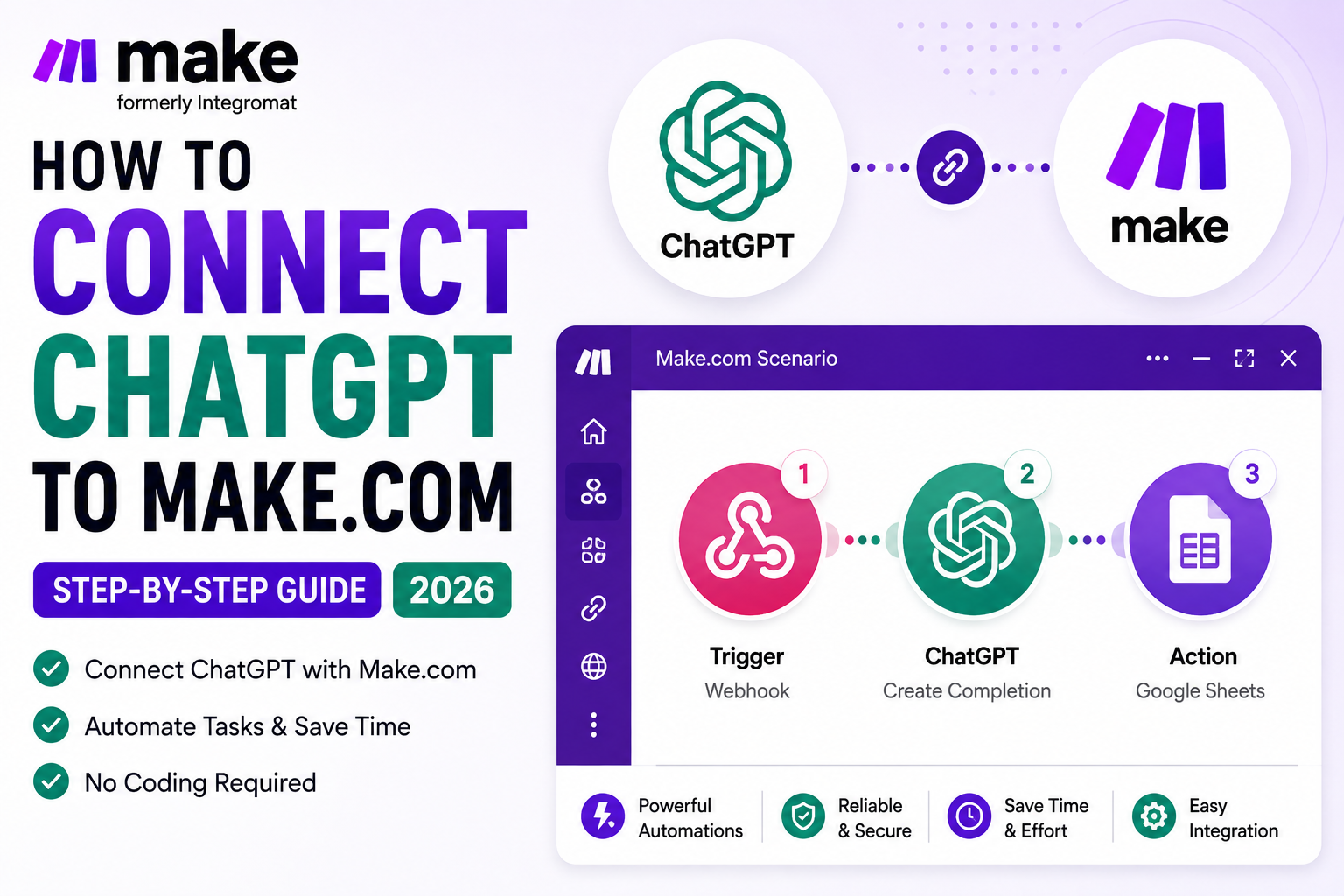
How to Connect ChatGPT to Make.com: Step-by-Step Guide for 2026
How to Connect ChatGPT to Make.com is one of the most useful automation skills to learn if you want AI to work automatically with Google Sheets, Gmail, forms, CRMs, databases, and other business apps. Instead of manually copying information into ChatGPT and pasting the result somewhere else, Make.com can move the data, send it to OpenAI, receive the AI-generated response, and continue the workflow automatically.
In this beginner-friendly tutorial, we will build a simple example workflow: Google Sheets → OpenAI → Google Sheets. A new spreadsheet row provides the source data, the OpenAI module processes it, and Make saves the generated response back to your spreadsheet.
If you are new to Make.com, start with our Make.com Tutorial for Beginners: Complete Automation Guide 2026 to understand scenarios, triggers, actions, data mapping, and flow control before building Google Sheets automations.
How to Connect ChatGPT to Make.com: What You Need
Before starting, prepare a Make.com account, an OpenAI API account with API access configured, and a Google account if you want to follow the Google Sheets example. You do not need to be a programmer because Make uses a visual scenario builder.
OpenAI states that API keys can be created and managed from the API platform, and the full secret key is only shown when it is created. Keep your key private and never publish it in screenshots, WordPress posts, source code, or shared documents. You can review OpenAI’s official API key guidance and API key safety recommendations.
How to Connect ChatGPT to Make.com: How the Connection Works
The basic workflow has three parts: a trigger provides data, the OpenAI module generates an AI response, and a destination module receives the result. Make’s visual automation builder lets you connect those modules into one scenario.

Step 1: Create a New Scenario in Make.com
Sign in to Make and create a new scenario. A scenario is the workspace where your trigger, OpenAI module, actions, filters, routers, and other automation components are connected.
Give the scenario a clear name such as ChatGPT Google Sheets Automation. Clear names become increasingly useful as you create more automations.
Step 2: Add a Trigger Module
Click the + button and select the application that will start your workflow. For this tutorial, choose Google Sheets and select a suitable trigger such as watching for new rows.
Connect your Google account, choose the spreadsheet and sheet, and configure the module so Make knows which data it should monitor.
Step 3: Add the OpenAI Module
Click the next + button after your trigger and search for OpenAI. Select the OpenAI integration available in Make and choose the text-generation action that matches your workflow.
This is the central step when learning How to Connect ChatGPT to Make.com: the source application supplies the data, and the OpenAI module turns that data into AI-generated output.
Step 4: Connect Your OpenAI Account to Make.com
Inside the OpenAI module, create a new connection and follow Make’s current connection dialog. Depending on the integration flow available in your account, you may be asked for OpenAI API credentials or another supported authentication method.
OpenAI recommends keeping API keys private and not sharing them with other people. For team workflows, OpenAI recommends project-based access and separate project keys rather than sharing one personal key.
Step 5: Configure the Prompt
Now tell the AI exactly what you want it to do. A strong automation prompt should explain the task, define the output format, include any important restrictions, and map the relevant data from the previous module.
For example, if a Google Sheet contains customer feedback, your prompt could ask the model to summarize the feedback in three bullet points and identify the overall sentiment. For an SEO workflow, you could ask for a title, meta description, or short content summary.
Step 6: Select the Model and Map Your Data
Select an OpenAI model that is available in your current Make module and suitable for the task. Model availability can change, so use the options shown in your Make account rather than relying on an older screenshot.
Map your Google Sheets columns into the prompt fields so every new row sends dynamic data to OpenAI. For example, map the article title, topic, customer feedback, product details, or any other source fields required by your prompt.
Step 7: Add a Destination Module
After the OpenAI module, add the app that should receive the response. In this example, add Google Sheets again and choose an action that adds or updates a row.
Map the OpenAI response into a column such as AI Response, Summary, or Generated Content. You can also use Gmail, Slack, Notion, a CRM, or another destination supported by Make.

Step 8: Test How to Connect ChatGPT to Make.com
Before turning the scenario on, click Run once. Add a test row to your spreadsheet or provide whatever sample data your trigger expects. Watch the data move from Google Sheets to OpenAI and then to the final action.
Check that the OpenAI module receives the right fields, the prompt contains the expected information, the AI response is generated correctly, and the final module stores the result in the correct location.
Step 9: Troubleshoot Common ChatGPT Make.com Errors
If the scenario fails, open the execution details and inspect the module showing the error. Common causes include an incorrect connection, API-account or billing issues, missing mapped data, an unavailable model/action, incorrect permissions, or unexpected input.
Start with a small test workflow. Once the simple version works reliably, add filters, routers, error handlers, and more destinations.
Step 10: Turn On and Monitor the Automation
Save your scenario and configure its schedule or instant trigger behavior as required. Then activate it. Make can now execute the workflow automatically when the trigger conditions are met.
Review scenario history regularly, particularly after changing your prompt, model, spreadsheet columns, or connected applications.
How to Connect ChatGPT to Make.com for Real Business Use Cases
- Generate summaries from Google Sheets rows.
- Draft email responses from form submissions.
- Classify or tag incoming customer messages.
- Turn long text into social media drafts.
- Create product-description drafts from structured data.
- Extract structured information from text.
- Generate SEO titles, descriptions, and content briefs.
- Send AI-generated results to Gmail, Slack, WordPress, databases, or CRMs.
Best Practices: How to Connect ChatGPT to Make.com Reliably
Keep prompts clear and specific, test them before processing large volumes of data, and map only the fields the model actually needs. Protect credentials and avoid exposing private or confidential information unnecessarily.
As your scenario grows, use Make filters and routers to control when OpenAI is called. Our Make.com Filters Tutorial explains how to control which bundles continue through a workflow, while our Make.com Router Tutorial shows how to create multiple automation paths.
Continue Learning Make.com on XVIFS
If you are building a complete Make.com skill set, continue with our Make.com Array Aggregator guide and our Make.com Webhook Tutorial.
For current product information, use the official Make Help Center. OpenAI’s current API documentation is available through the official OpenAI API documentation.
Frequently Asked Questions About How to Connect ChatGPT to Make.com
Can I Learn How to Connect ChatGPT to Make.com Without Coding?
Yes. Make provides a visual scenario builder, so many OpenAI workflows can be built without writing code.
Do I need an OpenAI API key?
You need to authenticate the OpenAI integration using a connection method supported by Make. If your connection uses an API key, create and manage it through the OpenAI API platform and keep it private.
Can Make.com send ChatGPT responses to Google Sheets?
Yes. A Make scenario can send source data to OpenAI and then map the generated output into a Google Sheets action.
Can I connect ChatGPT to Gmail, Slack, or WordPress with Make.com?
Yes. Make can connect OpenAI with many other applications. The available actions depend on the apps and modules supported in your Make account.
Why is my OpenAI module failing in Make.com?
Check the execution log first. Verify the connection, API access or billing status, mapped data, selected model or action, app permissions, and module configuration.
Is an OpenAI API key the same as a ChatGPT subscription?
No. ChatGPT and the OpenAI API are separate products. API access and usage are managed through the OpenAI API platform.
Conclusion: How to Connect ChatGPT to Make.com Successfully
Learning How to Connect ChatGPT to Make.com lets you move from manually using AI to building repeatable AI-powered workflows. The core process is simple: choose a trigger, send its data to OpenAI, configure a clear prompt, map the response to another app, test the scenario, and then activate it.
Start with the Google Sheets → OpenAI → Google Sheets example in this guide. Once it works, you can expand the workflow with filters, routers, Gmail, Slack, WordPress, webhooks, databases, and other apps to build much more powerful automations.