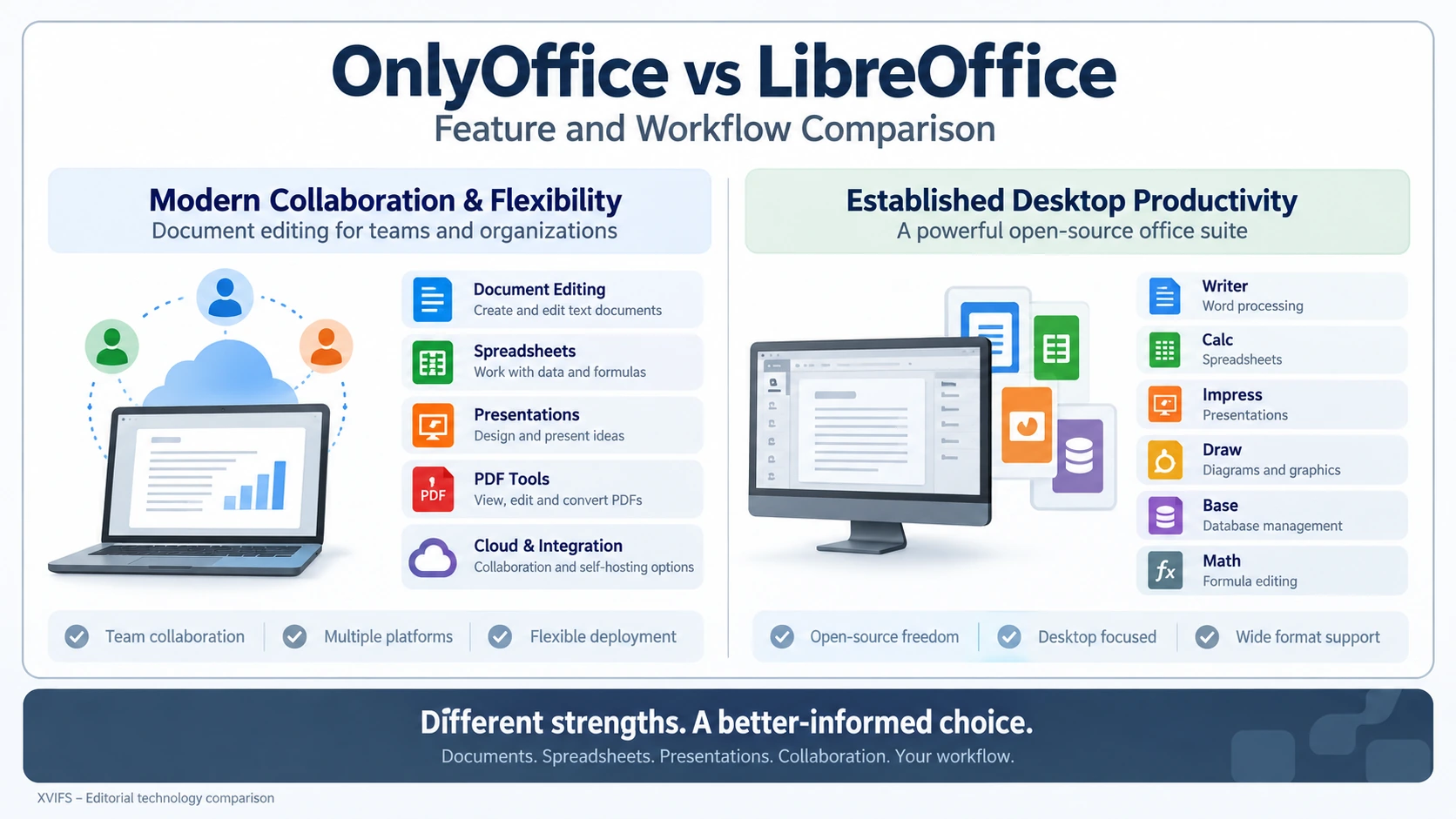
A practical guide to choosing between ONLYOFFICE and LibreOffice for desktop, cloud, and team collaboration.
Evaluating OnlyOffice vs LibreOffice requires looking past basic feature checklists and examining how each suite handles daily file management, team collaboration, document fidelity, and system architecture. Choosing between them is rarely about finding an undisputed winner; rather, it comes down to matching a tool’s design philosophy with your operational reality.
Both platforms deliver powerful open-source productivity environments capable of handling word processing, spreadsheets, and presentations without forcing organisations into vendor lock-in. However, their underlying architectures target fundamentally different operational models. ONLYOFFICE focuses heavily on cloud-native co-editing, modern web interfaces, and direct Microsoft Office document compatibility. LibreOffice offers a deeply customisable, desktop-first productivity suite built on open standards and backed by decades of community software development.
OnlyOffice vs LibreOffice: Quick Comparison
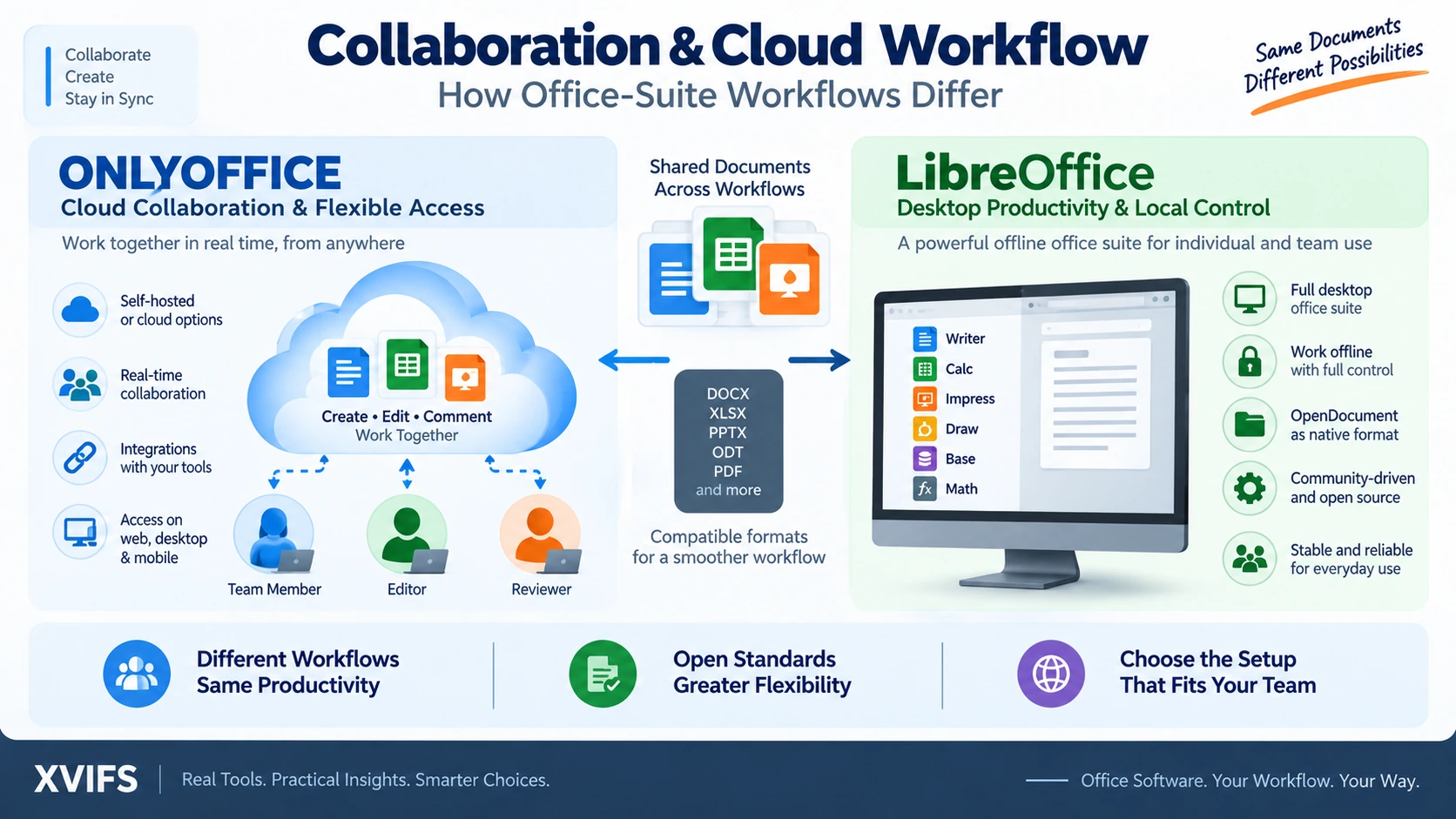
When comparing OnlyOffice vs LibreOffice, the core distinction lies in how they construct, render, and share documents across networks and operating systems.
ONLYOFFICE prioritises seamless interoperability with Microsoft Office formats like DOCX, XLSX, and PPTX. It uses a browser-friendly engine that works identically across desktop apps, mobile platforms, and web interfaces. LibreOffice emphasises full local autonomy, extensive application depth, and native compliance with the OpenDocument Format (ODF), making it an ideal choice for privacy-focused workstations and open-standard mandates.
What ONLYOFFICE Includes
The core client application, ONLYOFFICE Desktop Editors, provides dedicated environments for text documents, spreadsheets, presentations, fillable forms, and PDF editing across Windows, Linux, and macOS. Mobile applications for Android and iOS extend these editing tools to handheld devices, allowing users to review and modify files on the go.
On local endpoints, ONLYOFFICE operates without requiring an internet connection, supporting standard office file types like DOCX, ODT, XLSX, ODS, PPTX, and ODP. However, its true design intent emerges when paired with server environments. When connected to ONLYOFFICE cloud services or self-hosted platforms, desktop editors turn into live collaborative clients. The server engine, known as ONLYOFFICE Docs, delivers real-time web-based editing directly inside document management systems, portals, and cloud storage servers.
What LibreOffice Includes
LibreOffice provides a broad selection of desktop applications designed for deep local document creation and data processing:
- Writer: Advanced word processing and publishing engine.
- Calc: High-capacity spreadsheet analysis and graphing tool.
- Impress: Presentation editor for slides and visual demonstrations.
- Draw: Vector graphics generator, flowcharts, and technical diagramming tool.
- Base: Desktop database frontend for managing relational tables and queries.
- Math: Formula editor for generating and formatting complex mathematical equations.
Governed by The Document Foundation as an independent, community-backed free software project, LibreOffice relies on the OpenDocument Format as its native saving target. This design ensures that user data remains accessible, transparent, and completely independent of proprietary binary formats or commercial cloud ecosystems.
Document Compatibility and Internal Processing Models
File fidelity often dictates which suite an enterprise can adopt. The two platforms take entirely different approaches to processing Microsoft Office files.
For teams weighing OnlyOffice vs LibreOffice, document fidelity should be tested against the Microsoft Office files that matter most to the organisation.
ONLYOFFICE uses an OOXML-centric internal model. When opening non-native input files like ODT or legacy DOC documents, the system converts them internally to OOXML/DOCX during editing, as detailed in the ONLYOFFICE supported formats reference. This architecture ensures that complex Microsoft Word or Excel documents retain their exact layout geometry, font spacing, and visual formatting when saved and shared back to Microsoft Office users.
LibreOffice uses ODF as its native format while providing import and export filters for Microsoft formats. While it opens and edits DOCX, XLSX, and PPTX files easily, official LibreOffice user guidance and import/export limitation documentation explicitly note that complex layouts, custom macros, nested tables, or specialized formulas may require manual adjustments. Organizations moving heavily formatted Microsoft templates into LibreOffice should test their file library carefully to catch potential rendering differences.
Collaboration and Cloud Architecture
Real-time collaboration highlights one of the sharpest operational divides between the two suites.
An OnlyOffice vs LibreOffice evaluation should also consider whether browser-based co-editing or a primarily desktop workflow better matches the team.
ONLYOFFICE Docs was constructed specifically for browser-based co-editing and team workflows. According to the ONLYOFFICE collaborative editing guide, the suite provides two distinct real-time collaboration modes:
- Fast Mode: Displays co-author edits instantly as characters are typed, ideal for active group brainstorming.
- Strict Mode: Locks specific paragraph blocks while an author works, displaying changes to team members only after saving, ideal for formal drafting.
The editing engine includes side-by-side document comparison, revision history tracking, inline comment threads, document merging tools, and built-in chat features.
In contrast, LibreOffice focuses primarily on local desktop performance. While LibreOffice Online provides underlying server technology for web editing, it is not a ready-to-run SaaS platform out of the box. It relies on external storage backends, user management systems, and authentication layers provided by third-party integrators, and The Document Foundation does not host a cloud-based consumer service. As a result, teams that need out-of-the-box web collaboration usually find ONLYOFFICE easier to deploy for live web editing.
Offline Desktop Performance
Both suites deliver reliable offline desktop editing without forcing users to maintain an active internet connection.
For an OnlyOffice vs LibreOffice decision centered on offline work, desktop workflow requirements can be more important than cloud collaboration features.
ONLYOFFICE Desktop Editors offers a clean, uniform interface across desktop environments. Users can download installation packages directly from the ONLYOFFICE desktop download page. For general business documentation, spreadsheets, and slide decks, it offers a quick, responsive editing experience.
LibreOffice excels on desktop endpoints that require specialized offline tools. For instance, technical writers, database managers, and academics frequently rely on LibreOffice Draw for vector diagrams, Base for managing local database connections, and Math for structuring complex formulas. These extra tools make LibreOffice a versatile offline suite for technical teams.
PDF Editing and Form Creation
Document workflows often extend beyond traditional word processing into fillable forms and PDF management.
When an OnlyOffice vs LibreOffice comparison includes PDF-heavy workflows, the way each suite handles editing and forms deserves a separate evaluation.
ONLYOFFICE integrates PDF editing and fillable form creation directly into its primary interface. Users can convert documents into interactive forms, insert fillable text boxes, radio buttons, and dropdown lists, and export completed forms to standard PDF files for secure distribution.
LibreOffice handles PDF exports across all core applications with granular control over compression, image resolution, encryption, and digital signatures. However, its PDF editing capabilities are centered inside LibreOffice Draw, which imports PDFs as graphic objects. While this works well for modifying layout elements or fixing text typos, it operates differently from traditional word processing editors. Organizations that work heavily with interactive forms should evaluate both platforms against their specific production needs.
Open Source Governance and Licensing
Licensing and organizational structure influence long-term stability and software compliance.
The OnlyOffice vs LibreOffice choice can also depend on how an organization evaluates licensing, governance, and open-source priorities.
LibreOffice is managed by The Document Foundation, a non-profit foundation committed to preserving open standards and free software access. Development is driven by a global community of open-source contributors and enterprise sponsors. Its primary mission focuses on long-term data accessibility, public software availability, and user autonomy.
ONLYOFFICE operates under a dual-model commercial ecosystem. While ONLYOFFICE Desktop Editors is released as free open-source software, the broader platform includes commercial server editions, enterprise support tiers, and white-label integration licenses. IT procurement departments should evaluate the licensing model of the specific edition they plan to deploy, particularly when embedding web editors inside corporate portals or server clusters.
User Interface and Usability
Interface familiarity plays a major role in user adoption and helpdesk ticket volume during a software transition.
In an OnlyOffice vs LibreOffice comparison, interface familiarity can influence adoption even when the underlying feature sets appear similar.
ONLYOFFICE uses a modern, ribbon-style tabbed layout that closely mirrors recent versions of Microsoft Office. Users transitioning from Microsoft products generally find the interface intuitive, as main menus, formatting toolbars, and tab structures sit in familiar positions.
LibreOffice offers flexible interface layouts. Users can choose classic drop-down toolbars, compact icon arrangements, or notebook-style tabbed interfaces. This adaptability lets organizations tailor the desktop experience to user preferences, though it may require brief introductory training during rollout.
Spreadsheet Capabilities and Formula Engines
For data analysis, financial models, and operational tracking, spreadsheet compatibility is critical.
ONLYOFFICE Spreadsheet Editor focuses on clean execution of modern XLSX workbooks, supporting standard functions, pivot tables, chart layouts, and JavaScript-based macros. Its clean interface makes it easy to construct clean business reports and collaborative data sheets.
LibreOffice Calc provides a deep toolkit for complex statistical processing, offering built-in functions, extensive chart controls, multi-dimensional pivot tables, and legacy macro support (including VBA compatibility layers). However, because complex financial spreadsheets often rely on subtle formula variations and layout rules, administrators should test mission-critical workbooks during initial evaluation.
Enterprise Deployment, Infrastructure, and Security
Deploying software across large user bases requires careful planning around endpoint management, network architecture, and data control.
For enterprise buyers, an OnlyOffice vs LibreOffice assessment should include deployment architecture, administration, and data-control requirements.
LibreOffice installs smoothly via standard package management frameworks (such as MSI installers, DEB, RPM, and Flatpak packages). It fits naturally into centralized desktop management tools like Microsoft Group Policy (GPO), Ansible, or Jamf, enabling simple mass rollouts across offline or air-gapped workstations.
ONLYOFFICE offers hybrid deployment options. In addition to local desktop installers, administrators can deploy self-hosted ONLYOFFICE Docs servers using Docker containers, Linux repositories, or Windows Server environments. Detailed installation procedures are documented on the ONLYOFFICE self-hosted deployment guide. Self-hosting ensures that document files, user metadata, and authentication credentials remain completely contained within corporate firewalls, meeting strict regulatory requirements outlined in the ONLYOFFICE security overview.
For enterprise storage, ONLYOFFICE maintains official pre-built connectors for major content management systems. As listed on the ONLYOFFICE ready-to-use connectors directory, native integrations are available for platform environments including:
- Nextcloud and ownCloud private cloud storage
- SharePoint Enterprise content hubs
- Moodle learning management frameworks
- WordPress publishing platforms
- Odoo enterprise resource planning suites
- Mattermost team communication hubs
Feature and Workflow Decision Matrix
This OnlyOffice vs LibreOffice comparison is most useful when the decision matrix is matched to the workflows the organization actually needs to support.
| Operational Area | ONLYOFFICE | LibreOffice |
|---|---|---|
| Desktop Operating Systems | Windows, macOS, Linux | Windows, macOS, Linux |
| Mobile Capabilities | Dedicated Android and iOS apps | Viewer apps via third-party developers |
| Core Application Suite | Documents, Spreadsheets, Presentations, Forms, PDF Editor | Writer, Calc, Impress, Draw, Base, Math |
| Browser Co-editing | Native engine with Fast and Strict real-time modes | Server engine requiring custom backend integration |
| Native Document Engine | OOXML-centric internal model (DOCX, XLSX, PPTX) | OpenDocument Format standard (ODT, ODS, ODP) |
| Platform Integration | Pre-built connectors (Nextcloud, SharePoint, Moodle, etc.) | External document storage integration |
| Deployment Models | Desktop, Cloud, Self-hosted (Docker, Linux, Windows) | Desktop software, modular server backend |
| Primary Strengths | Microsoft format fidelity, web co-editing, modern UI | Extensive desktop tools, ODF compliance, community governance |
Migration Checklist for Systems Administrators
To ensure a smooth suite rollout without unexpected workflow disruptions, follow this structured migration roadmap:
- Document Inventory: Catalog all active document templates, forms, macro-enabled spreadsheets, and database links across departments.
- Fidelity Pilot: Select a representative sample of complex DOCX, XLSX, and PPTX files. Open, edit, save, and reopen them across both suites and original applications to verify rendering accuracy.
- Macro & Script Audit: Identify custom VBA macros. Evaluate whether they need conversion to JavaScript macros (for ONLYOFFICE) or StarBasic/Python (for LibreOffice).
- Integration Testing: Verify connector stability, authentication flows, and file locking behavior within your primary cloud storage platform.
- User Acceptance Testing: Conduct pilot trials with high-volume document creators to evaluate interface usability, keyboard shortcuts, and review workflows.
- Deployment & Rollout: Distribute desktop packages, configure update channels, provide user documentation, and establish helpdesk support paths before full transition.
Before organization-wide deployment, administrators should also establish a controlled test environment that mirrors real production conditions. Include representative user roles, shared folders, permission structures, document templates, and the storage services employees use every day. Testing should cover more than whether a file opens successfully. Teams should verify page layout, fonts, formulas, charts, comments, tracked changes, embedded objects, print output, and export behavior. Any document that supports a critical financial, legal, operational, or customer-facing process deserves additional review before the new suite becomes the default.
A phased rollout can reduce migration risk. Start with a small group of users whose workflows represent different departments, then record compatibility issues and support requests before expanding deployment. Administrators should document which file types work without adjustment, which require conversion, and which should continue to be handled in an existing application. This creates a practical exception policy instead of forcing every document through the same migration path.
Support planning matters as much as technical testing. Prepare short guidance for common tasks such as opening shared documents, managing comments, exporting PDFs, recovering previous versions, and choosing the correct file format when collaborating with external partners. Helpdesk teams should receive the same pilot findings so recurring issues can be resolved consistently. During the first weeks after rollout, track compatibility incidents, user-reported friction, failed integrations, and document-conversion problems. These observations provide a stronger basis for deciding whether to expand deployment, adjust configuration, retain a mixed-software environment, or postpone migration for specialized teams.
Related XVIFS reading: Explore our operational insights on enterprise software systems in Cloud-Based HR Software: Best Solutions for Businesses in 2026, review modern application development in SaaS Development Services: 9 Key Steps to Build Better Software, or examine administrative management applications in Discover Bayzat: Human Resource Management Software.
Frequently Asked Questions
Is ONLYOFFICE free to use?
Yes, ONLYOFFICE Desktop Editors is free, open-source software for personal and commercial desktop use. Commercial licenses apply primarily to enterprise server deployments, advanced scalability features, and official tech support.
Is LibreOffice completely free?
Yes, LibreOffice is completely free and open-source software maintained by The Document Foundation. It can be deployed across unlimited endpoints without licensing fees.
Which platform offers better Microsoft Office compatibility?
ONLYOFFICE generally achieves higher visual fidelity with Microsoft formats because it uses an internal OOXML processing engine. LibreOffice opens and edits Microsoft files effectively but relies on conversion filters that may require minor reformatting on highly complex layouts.
Which tool is better for real-time team collaboration?
ONLYOFFICE is better suited for real-time team collaboration due to its native web-editing engine, flexible co-editing modes (Fast and Strict), and ready-to-use cloud connectors.
Final Verdict: Which Suite Should You Choose?
Selecting between ONLYOFFICE and LibreOffice ultimately comes down to your primary editing environment and document ecosystem.
The final OnlyOffice vs LibreOffice decision should therefore follow the users, document formats, collaboration model, and deployment requirements identified above.
Choose ONLYOFFICE if your team works heavily with Microsoft Office file formats, relies on real-time browser collaboration, or uses cloud storage platforms like Nextcloud or SharePoint. Its intuitive ribbon interface and native web co-editing make it a powerful choice for modern online team workflows.
Choose LibreOffice if you require a mature, standalone desktop suite with deep customization, complete data privacy, and strict adherence to open document standards. Its extensive toolset—including Draw, Base, and Math—makes it ideal for technical workstations, offline environments, and organizations dedicated to open-source software independence.
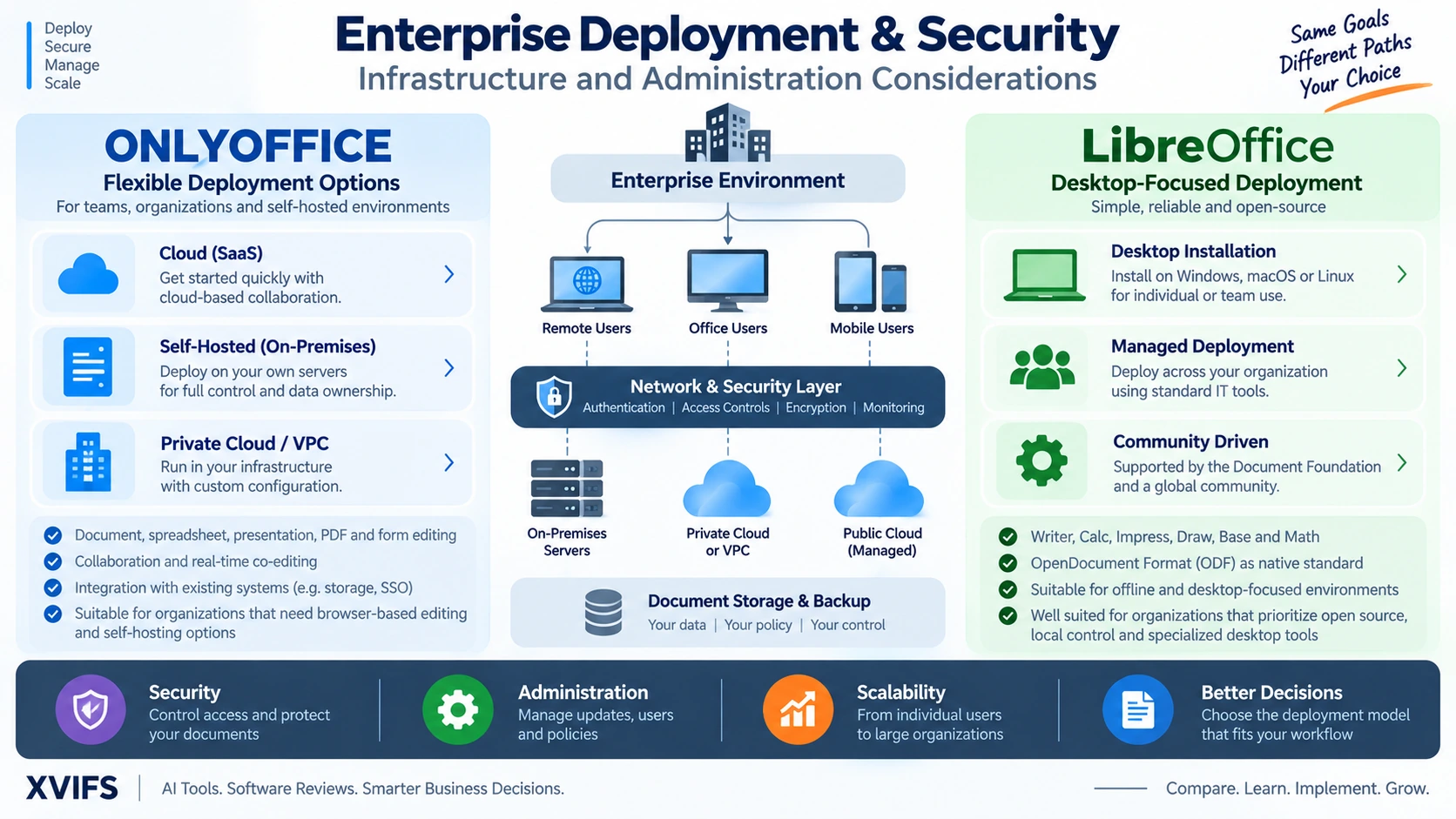
OnlyOffice vs LibreOffice — comparison visual.