Make.com HTTP Module Tutorial: Complete API Automation Guide 2026
The Make.com HTTP Module Tutorial is one of the most useful guides for anyone who wants to move beyond basic app integrations and start connecting APIs directly inside Make.com. The Make.com HTTP Module gives you a flexible way to call APIs, send custom requests, receive structured responses, and connect services that do not offer the exact native Make module you need. The HTTP module lets you send requests to API endpoints, receive data, and pass the response into other modules in your automation. This beginner-friendly guide explains how the HTTP module works, how to configure your first request, how to work with JSON responses, and how to avoid common mistakes. You do not need to be a professional developer to follow along.
What Is the Make.com HTTP Module?
The Make.com HTTP Module gives you direct access to APIs when a native Make integration does not provide the operation you need.
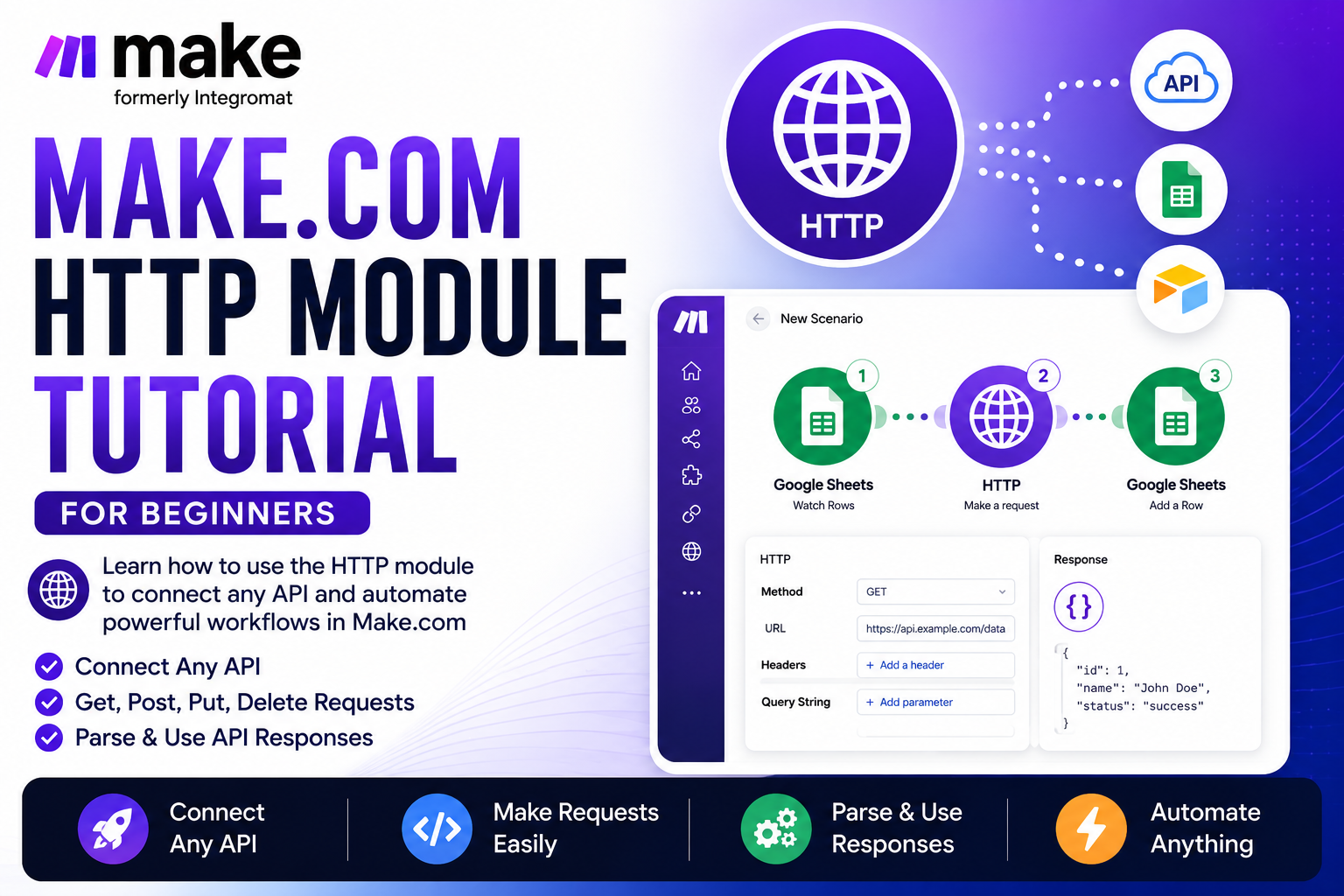
The HTTP app acts as a bridge between your Make.com scenario and an external web service. It is particularly useful when the service you want to automate does not have the exact native Make integration or module you need. For example, a workflow can receive a new Google Sheets row, send its data to an API through the HTTP module, receive a response, and save selected response fields back into Google Sheets.
Make.com HTTP Module vs Native Make.com Integrations
Use a native Make.com integration when it already provides the trigger or action you need. Native modules are usually faster to configure because authentication, fields, and common operations are already prepared for you.
Use the Make.com HTTP Module when the native integration is missing an endpoint or action, or when you need direct control over the API URL, request method, headers, query parameters, authentication, request body, or response handling.
How the Make.com HTTP Module Works
The Make.com HTTP Module sends a request from your Make scenario to an external API endpoint and then returns the response so you can use that data in later modules. A typical flow is: trigger → HTTP request → API response → mapped action.
For beginners, the easiest way to understand the module is to start with a GET request. Once that works, you can move to POST, PUT, PATCH, authentication, headers, query parameters, JSON bodies, pagination, and error handling.
How to Call an API in Make.com Using the HTTP Module
To call an API in Make.com, add the HTTP > Make a request module to your scenario and configure the API endpoint, request method, authentication, headers, query parameters, and request body required by the API provider.
- Enter the API endpoint: Use the exact URL provided in the API documentation.
- Choose the HTTP method: Select GET, POST, PUT, PATCH, DELETE, or another supported method according to the API.
- Add authentication: Configure the required API key, bearer token, Basic Authentication, or OAuth connection securely.
- Add headers and parameters: Include required headers such as
Content-Type: application/jsonand any query parameters the endpoint needs. - Add the request body: For POST, PUT, or PATCH requests, map the data you want to send, often in JSON format.
- Run once: Test the request and inspect the status code, response headers, and returned body.
- Map the response: Use the returned fields in later Make.com modules.
If the API returns JSON that you need to parse, structure, or map into later modules, continue with our Make.com JSON Tutorial. If you need to split an array returned by an API into individual bundles, see the Make.com Iterator Tutorial.
Make.com HTTP Module Tutorial: Step-by-Step Workflow

Step 1: Create a New Make.com Scenario
Log in to Make.com and create a new scenario. Choose the app or event that should start your workflow. For practice, Google Sheets is an easy trigger because you can create a row and immediately see how data moves through the scenario.
Step 2: Add the HTTP Module in Make.com
Before configuring the Make.com HTTP Module, confirm the endpoint, request method, authentication requirements, headers, and expected response format in the API documentation.
Click the plus button after your trigger, search for HTTP, and choose Make a request. This module sends the API request.
Step 3: Choose the Correct HTTP Request Method
- GET: Retrieve information.
- POST: Create or send information.
- PUT: Replace or update an existing resource.
- PATCH: Partially update an existing resource.
- DELETE: Delete a resource.
Always follow the API provider’s documentation instead of guessing which method to use.
Step 4: Enter the API Endpoint URL
Enter the endpoint URL supplied by the API provider. Different endpoints may exist for users, orders, contacts, products, or other resources, so use the one that matches your intended action.
Step 5: Configure Authentication Securely
Many APIs require authentication. Depending on the service, this may involve an API key, Basic Authentication, bearer token, or OAuth 2.0. Keep real credentials private and never publish them in screenshots, tutorials, or public scenario exports.
Step 6: Add Headers and Query Parameters
Headers provide information about the request, while query parameters are often used for filters, pagination, limits, search terms, or date ranges.
Step 7: Send JSON Data with POST, PUT, or PATCH
If you need to send information to an API, a JSON request body is common:
{
  "name": "John Doe",
  "email": "john@example.com"
}
Step 8: Run Once and Test the HTTP Request
Click Run once and inspect the HTTP module output. Confirm the status code, response body, headers, and any returned data.
Step 9: Parse and Map the API Response
When an API returns structured JSON, Make.com can expose fields for mapping. If the response is a raw JSON string or contains nested objects and arrays, our Make.com JSON Tutorial explains how to parse and map the response correctly. Once Make can structure the response, you can map returned fields into later modules such as Google Sheets, Airtable, Slack, Gmail, or your CRM.
Advanced Make.com HTTP Module Workflow

Step 10: Save and Activate Your Scenario
After testing, the Make.com HTTP Module should return the expected status code and data before you activate the scenario for live use.
Once your test succeeds, save the scenario and turn it on. For important production automations, also think about what should happen when the API is unavailable, credentials expire, the provider changes its response format, or a request fails.
Common HTTP Status Codes Beginners Should Know
2xx usually means success, 4xx usually points to a request or client-side problem, and 5xx usually indicates a server-side problem.
Common Make.com HTTP Module Errors
If the Make.com HTTP Module returns an error, check the URL, authentication, headers, parameters, request body, and the API provider’s response message first.
401 Unauthorized
Check your credentials, token, authentication type, and API permissions.
403 Forbidden
Your credentials may be valid but may not have permission to access the requested resource.
404 Not Found
Check the endpoint, path, API version, and resource identifier.
400 Bad Request
Review required parameters, JSON formatting, field names, content type, and required values.
429 Too Many Requests
You may have reached the API provider’s rate limit. Check its rate-limit policy and reduce request frequency if necessary.
Make.com HTTP Module vs Native App Modules
Use a native Make.com app module when it already supports the exact trigger or action you need. Use the Make.com HTTP Module when you need an API endpoint, method, parameter, or response that the native integration does not expose.
Native modules are usually faster for beginners because authentication and field mapping are already prepared. The HTTP module gives you more control, but it also requires you to follow the API provider’s documentation carefully.
Make.com HTTP Module Best Practices
- Read the API documentation before building the request.
- Never expose API keys in public screenshots.
- Test with sample data before activation.
- Check status codes and response bodies when troubleshooting.
- Use clear module names.
- Add error handling for important workflows.
- Limit data returned when pagination or filters are available.
When Should You Use the Make.com HTTP Module?
Use it when you need to connect a REST API, call an endpoint unavailable in a native integration, send custom requests, retrieve external data, or automate a service that Make does not support directly.
Useful Make.com Tutorials on XVIFS
Continue building your Make.com skills with these related XVIFS tutorials:
- Make.com JSON Tutorial – parse, structure, and map JSON data from APIs.
- Make.com Google Sheets Automation – connect spreadsheet data to automated workflows.
- Make.com Filters Tutorial – control which bundles continue through your scenario.
- Make.com Router Tutorial – send data through multiple automation paths.
- Make.com Iterator Tutorial – process array items one by one after an API response.
- Connect ChatGPT with Make.com – use AI inside Make.com automation workflows.
- Make.com Tutorial for Beginners – return to the complete Make.com automation guide.
Official Make.com HTTP Resources
For the latest field names, authentication settings, pagination, and response parsing options, refer to the official Make HTTP documentation.
Frequently Asked Questions About the Make.com HTTP Module
How do I use the Make.com HTTP Module?
Add the HTTP app to your scenario, choose Make a request, enter the API endpoint, select the correct method, configure authentication, headers, query parameters, and body data as required, then run the scenario once and inspect the response before mapping returned fields into later modules.
When should I use the Make.com HTTP Module?
Use it when a native Make.com integration does not provide the exact API operation you need, or when you need more control over endpoints, methods, headers, parameters, authentication, or response handling.
How do I call an API in Make.com?
Add the HTTP app to your scenario and select Make a request. Enter the API endpoint, choose the correct HTTP method, configure authentication, add any required headers or query parameters, and include a request body when needed. Run the scenario once to inspect the response, then map the returned data into later modules.
What is the Make.com HTTP module?
It allows a Make scenario to send HTTP requests to servers and APIs and use returned data in an automation.
Do I need coding knowledge?
Not necessarily. Basic API workflows can be built visually, although understanding endpoints, JSON, HTTP methods, authentication, and status codes is very helpful.
Can Make.com connect to an API without a native integration?
Yes. The HTTP app is designed for calling web services and APIs directly.
Can the HTTP module send POST requests?
Yes. You can configure POST and other supported HTTP methods according to the API’s requirements.
Can I map an HTTP response to Google Sheets?
Yes. Returned fields can be mapped into later modules once the response is available in the scenario.
Conclusion: Master the Make.com HTTP Module Tutorial
Learning the Make.com HTTP Module helps you build flexible API automations without being limited to pre-built app modules.
This Make.com HTTP Module Tutorial gives you the foundation for connecting APIs to Make.com. Start with a simple GET request, learn how responses work, and then move into authentication, POST requests, JSON bodies, response mapping, error handling, and pagination. For the next step, continue with our Make.com JSON Tutorial for API response parsing, the Make.com Iterator Tutorial for array processing, and the complete Make.com beginner guide for the full automation framework.