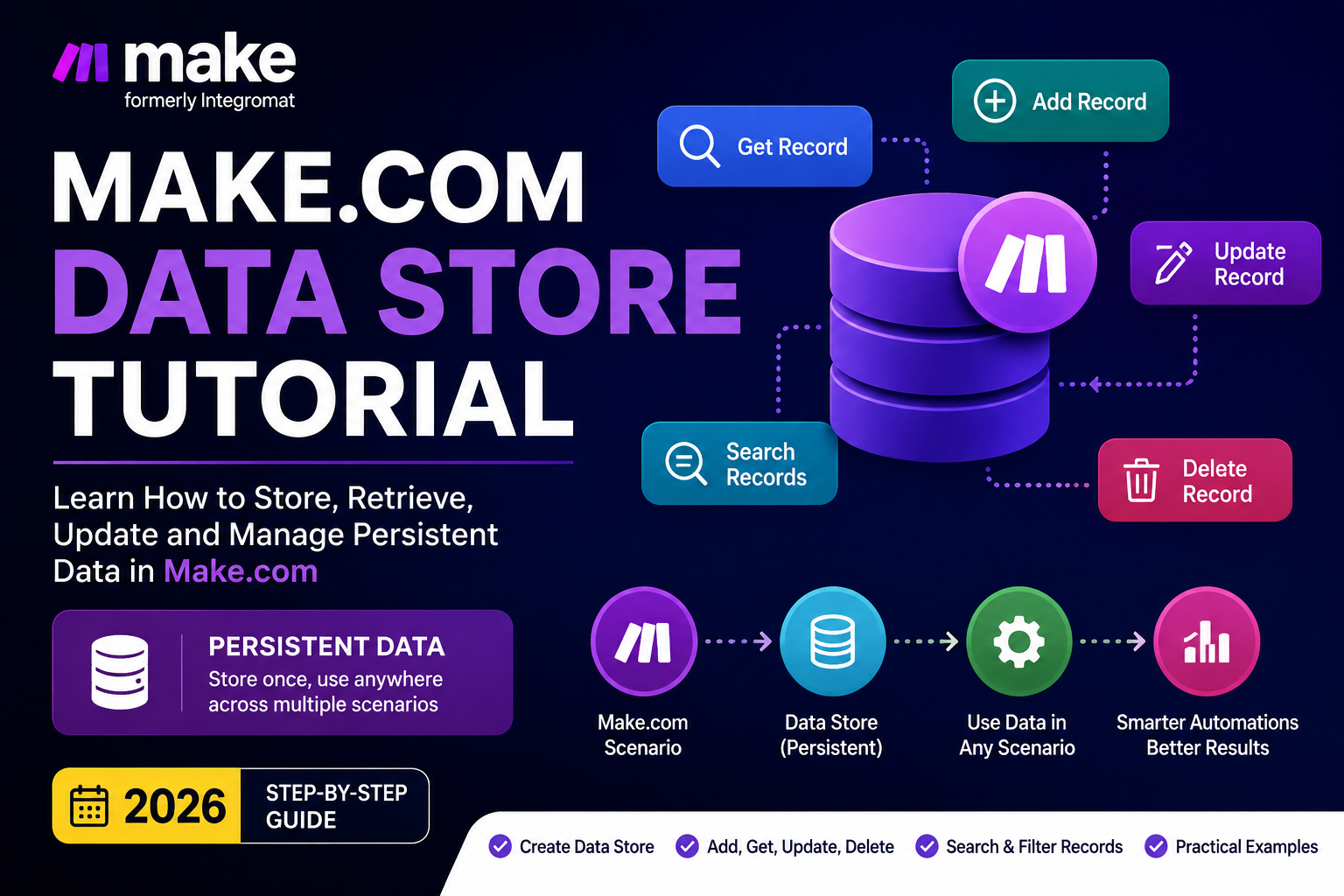
Make.com Data Store Tutorial is a practical guide to storing information inside Make.com so your automation can reuse data across scenario runs. If you have ever needed to remember a customer ID, prevent duplicate processing, save a pagination cursor, track a lead, or share stored information between scenarios, Data Stores are one of Make.com’s most useful built-in tools.
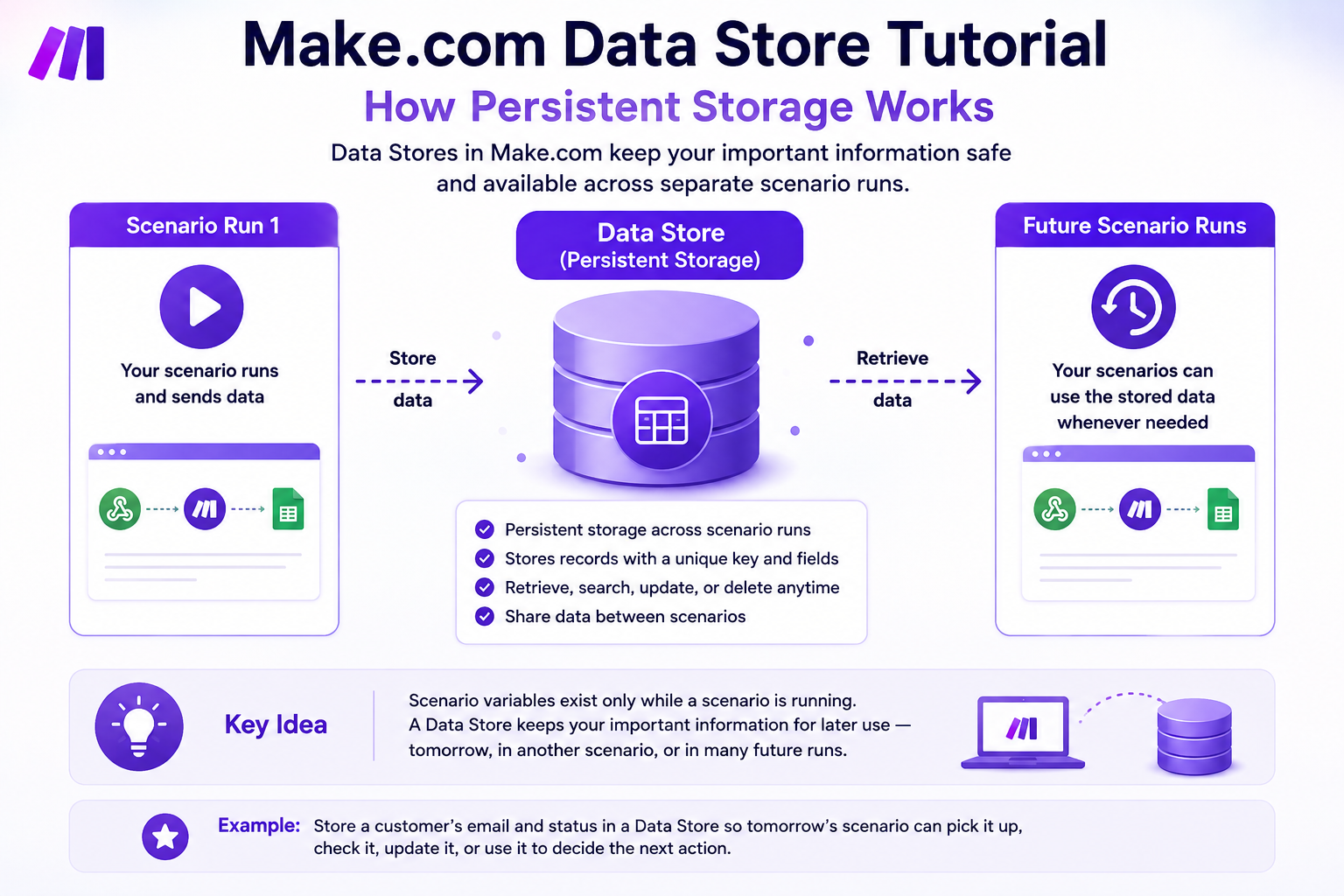
Unlike a normal scenario variable that is mainly used during an execution, a Data Store behaves more like a lightweight database. Make officially describes Data Stores as a way to store data from scenarios and transfer data between scenarios or scenario runs.
In this Make.com Data Store Tutorial, you will learn how to create a Data Store, define its data structure, add and retrieve records, search and update data, delete records safely, and use persistent data in a real automation workflow.
New to Make.com? Start with our Make.com Tutorial for Beginners. If you first want to understand temporary values inside a scenario, read our Make.com Variables Tutorial.
Make.com Data Store Tutorial: What Is a Data Store?
A Make.com Data Store is built-in storage that can keep records independently of a single scenario execution. Think of it as a small database available directly inside your Make organization.
A record normally contains a unique key plus fields defined by a data structure. For a customer Data Store, for example, you might use the customer’s email address as the key and store fields such as name, phone number, status, and creation date. Following this Make.com Data Store Tutorial will help you understand how those keys and fields work together in a practical scenario.
This makes Data Stores useful when an automation needs to remember information after the current scenario run has finished. According to the official Make Data Stores documentation, Data Stores can store scenario data and transfer information between scenarios or separate scenario runs.
Make.com Data Store vs Variables
The biggest difference is persistence. Scenario variables are excellent for temporarily storing and reusing values while a scenario is executing. A Data Store is designed for records that need to remain available for later executions.
- Scenario variable: temporary working value used during a scenario execution.
- Custom variable: reusable organization- or team-level configuration value on supported Make plans.
- Data Store: persistent record storage that can be retrieved, searched, updated, or deleted later.
For example, use a variable to temporarily hold lead_status = Hot while routing one execution. Use a Data Store when you need to remember that lead’s ID or processing status tomorrow or during another scenario run.
How to Create a Data Store in Make.com
The first hands-on step in this Make.com Data Store Tutorial is creating the storage container. From your Make dashboard, open Data stores from the left sidebar and choose Add data store. This part of the Make.com Data Store Tutorial gives you the foundation needed before adding Data Store modules to a live scenario.
Step 1: Name the Data Store
Give the Data Store a clear name based on what it will contain. For our example, use:
Customers
Descriptive names become increasingly important as you create more automations.
Step 2: Create the Data Structure
A data structure defines the fields stored in each record. For a basic customer example, create fields such as:
- name — Text
- phone — Text
- createdAt — Date
The record itself also has a unique key. We can use the customer’s email address as that key, which makes it easy to retrieve the same customer later.
Make also allows a Data Store without a custom data structure when you only need to save keys and check whether those keys exist. For most practical business workflows, however, a defined structure makes the stored information easier to understand and manage.
Step 3: Allocate Storage
Choose the storage size required for the Data Store. Make’s current documentation states that Data Store capacity is tied to plan credits and that each Data Store requires at least 1 MB. Check your own plan before building a storage-heavy workflow because allowances can change.
How to Add a Record to a Make.com Data Store
Now open your scenario and add a Data Store > Add/Replace a Record module. This module creates a new record or can replace an existing record when configured to do so.
For our customer workflow, configure it like this:
- Data Store: Customers
- Key: map the customer’s email address
- name: map the customer’s full name
- phone: map the phone number
- createdAt: map the current date/time
A unique and predictable key is important. Email addresses, order IDs, CRM contact IDs, invoice numbers, or another stable identifier can work well depending on the automation. In this Make.com Data Store Tutorial, the email address works well because each customer can be retrieved later using one consistent identifier.
Practical Make.com Data Store Workflow Example
Consider a lead-capture workflow:
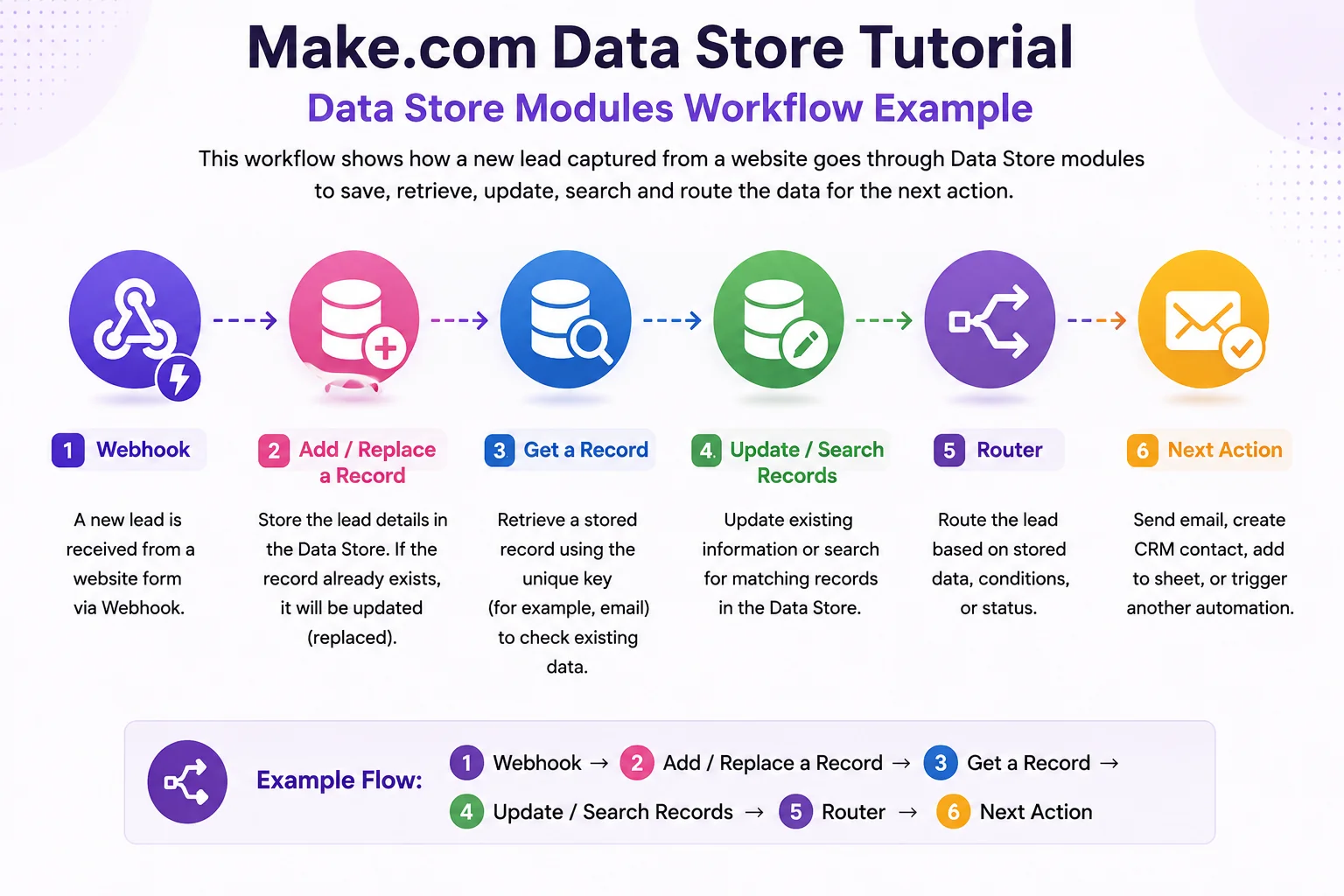
Webhook → Add/Replace a Record → Get a Record → Update/Search Records → Router → Next Action
A website form sends a new lead to a webhook. Make stores the customer’s details. A later module can retrieve the record, search for matching records, update its information, or route the lead according to stored data.
This is especially useful when you combine persistent storage with decision logic. Our Make.com Router Tutorial explains how to send bundles down different paths, while the Make.com Filters Tutorial explains how to control whether data can continue through a connection.
Important Make.com Data Store Modules
Add/Replace a Record
Use this when you need to create a new record or replace an existing record. Make’s documentation notes that attempting to add a duplicate key can produce an error when overwriting is disabled.
Get a Record
Get a Record retrieves one record using its unique key. This is ideal when you already know the exact identifier, such as an order ID or customer email used as the key.
Check the Existence of a Record
This module returns whether a specified key exists. It is extremely useful for deduplication workflows.
Example:
New Order → Check Record → If New → Process Order → Save Order ID
On a later run, Make can check the saved order ID and avoid processing the same order again.
Search Records
Search Records is useful when you do not have one exact key or when you need multiple matching records. You can configure filters, sorting, order, and a result limit.
Update a Record
Use Update a Record when a stored record already exists and only selected information needs to change. Make can also be configured to insert a missing record when the specified key does not already exist.
Delete a Record
This removes a specified record. Be careful with deletion logic, especially in production scenarios. Make’s documentation warns that deleted Data Store records cannot simply be rolled back through the Data Store interface.
Example: Prevent Duplicate Processing
One of the best uses covered in this Make.com Data Store Tutorial is deduplication. This is also one of the easiest ways to see why persistent storage can make a Make.com scenario more reliable.
Imagine that an external service sends an order to your webhook more than once. Without persistent tracking, your scenario might create the same invoice, email, or CRM record twice.
You can build this logic:
Webhook → Check the Existence of a Record → Filter → Process New Order → Add Order ID to Data Store
The first time order ORD-1055 arrives, it is not found, so the automation continues and stores the ID. If the same order arrives again, Make finds the saved key and you can stop the duplicate path.
For more complex conditional logic, see our Make.com Filters Tutorial.
Example: Store API Pagination Progress
Data Stores can also help an automation remember progress. Suppose an API returns hundreds of records in pages. After processing a page, you can store the next cursor or page token. The next execution retrieves that value and continues from the saved position instead of starting over.
A simplified workflow is:
Get Saved Cursor → HTTP Request → Process Results → Save New Cursor
If your workflow also returns arrays of items, our Make.com Iterator Tutorial explains how to process those items separately.
Make.com Data Store Best Practices
- Use stable keys. Choose identifiers that are unique and unlikely to change.
- Keep structures simple. Store only fields you genuinely need.
- Plan field names carefully. Make warns that changing data-structure field names can make existing column data inaccessible under the new identifier.
- Back up important records. Make recommends backing up Data Store data before large-scale structural changes or deletions.
- Watch storage limits. Persistent data consumes your allocated Data Store capacity.
- Test before activating. Run sample records through the scenario and confirm the correct keys and values are being stored.
Common Make.com Data Store Errors and Fixes
Duplicate Key Error
If a record with the same key already exists and overwrite is disabled, Add/Replace a Record can fail. Decide whether your workflow should update, replace, skip, or reject an existing record.
Record Cannot Be Found
Check that the key passed into Get a Record exactly matches the key originally stored. A mapped email address with extra spaces or a different ID format can cause a mismatch.
Data Store Is Out of Space
Review the storage allocated to your Data Stores and your available plan allowance. Remove unnecessary data only after confirming it is safe to delete, or adjust storage allocation where appropriate.
Old Data Becomes Inaccessible After Structure Changes
Do not casually rename field identifiers in an established Data Store. Make recommends backing up the data before changing a Data Store structure because structural changes can create unexpected results.
Data Store vs Google Sheets: Which Should You Use?
Google Sheets is useful when humans need to view, edit, report on, or collaborate around the stored information. A Make Data Store is useful when the data mainly exists to support automation logic and needs fast internal access without maintaining an external spreadsheet.
For spreadsheet-based workflows, see our Make.com Google Sheets Automation Tutorial.
You can also combine both. For example, a Data Store can keep internal processing IDs while Google Sheets contains a human-readable business report.
When Should You Use a Make.com Data Store?
A Data Store is a strong choice when your automation needs persistent information. The examples in this Make.com Data Store Tutorial are especially useful when your automation needs to:
- remember information between scenario runs;
- prevent duplicate processing;
- share stored records between scenarios;
- track IDs, statuses, counters, or cursors;
- retrieve a record later using a known key;
- search stored automation data; or
- maintain lightweight state without an external database.
For a complete overview of Make’s available Data Store operations and current limits, refer to the official Make.com Data Stores guide.
Frequently Asked Questions About Make.com Data Stores
What is a Data Store in Make.com?
A Data Store is Make.com’s built-in persistent storage feature. It can store records that scenarios can retrieve, search, update, and delete across separate executions.
Does a Make.com Data Store keep data between scenario runs?
Yes. Persistent storage across scenario runs is one of the main reasons to use a Data Store instead of relying only on a temporary scenario variable.
What is the difference between Set Variable and Data Store?
Set Variable is useful for storing a value for use within scenario execution according to the selected variable lifetime. A Data Store is designed to keep records that can be accessed in later runs or other scenarios.
Can Make.com Data Stores prevent duplicates?
Yes. Save a unique identifier as a record key and use Check the Existence of a Record before processing future bundles with the same identifier.
Can I search records in a Make.com Data Store?
Yes. The Search Records module supports filtering and can return matching stored records.
Should I use a Data Store or an external database?
Use a Data Store for lightweight automation state and relatively simple records inside Make. For large, highly relational, application-critical, or advanced database workloads, a dedicated database may be more appropriate.
Final Thoughts on This Make.com Data Store Tutorial
This Make.com Data Store Tutorial gives you the foundation for making automations remember what happened before. Once you understand keys, data structures, Add/Replace a Record, Get a Record, Search Records, and Update a Record, you can build workflows that are far more reliable than scenarios that treat every execution as completely new.
The next step is to create a small test Data Store, save one sample record, retrieve it in a scenario, and then add a filter or router based on the stored value. Combined with variables, filters, routers, iterators, and webhooks, persistent storage becomes an important part of a complete Make.com automation system.